
Connection Setup
Setting up Instagram on Feedlio
To unlock all of Feedlio’s features—including direct publishing—you must connect your Instagram account to a Facebook Page.
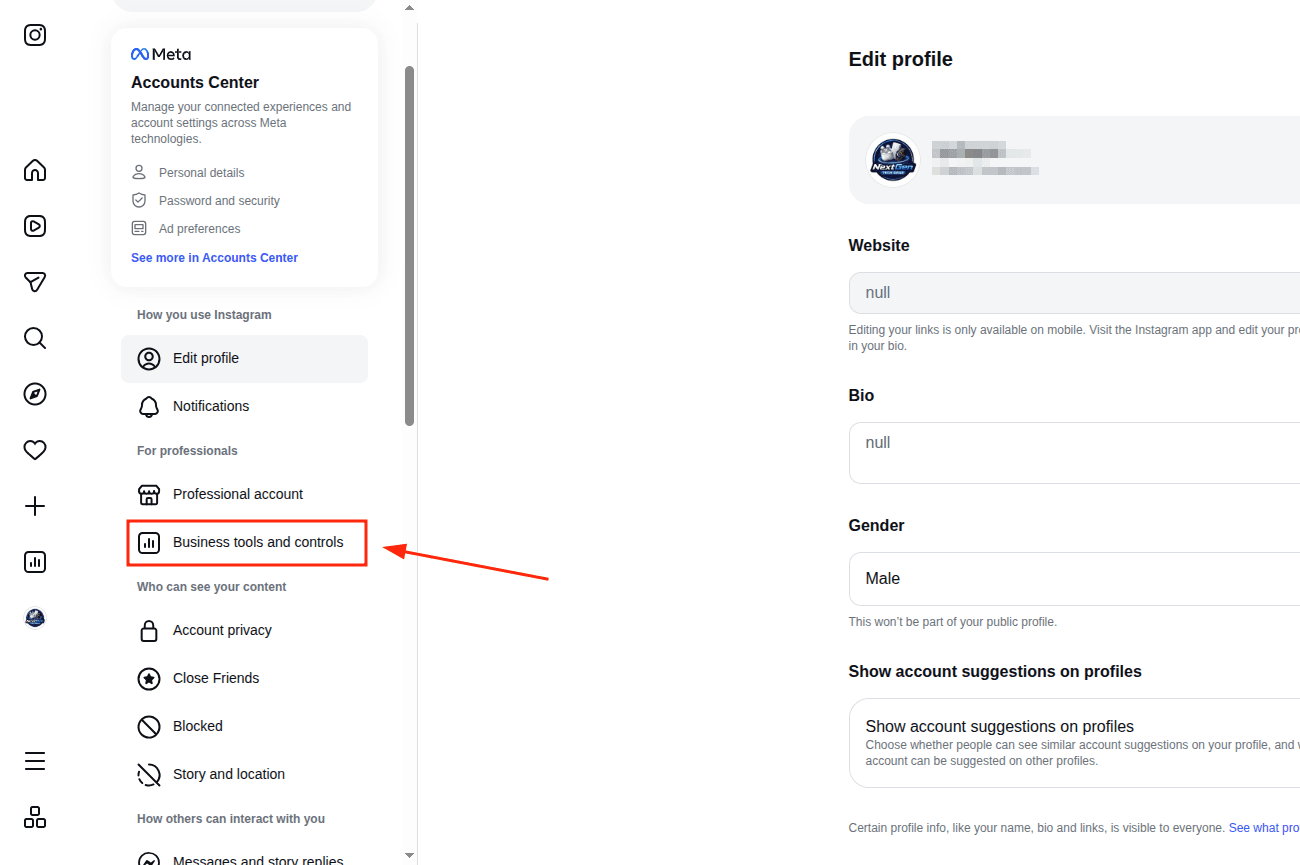
Confirm that your Instagram is a Business Account
To check your Instagram account type on a web browser, follow these steps:
- Log in to instagram.com.
- Click More (the three horizontal lines icon) in the bottom-left corner and select Settings.
- Scroll down to the "For Professionals" section.
What to look for:
- Business Account: You will see an option labeled "Business tools and controls."
- Creator Account: You will see an option labeled "Creator tools and controls."
- Personal Account: You will see "Account type and tools" (if you see this, your account is not yet set up as a Business or Creator account).
Linking your Instagram account with your Facebook Page
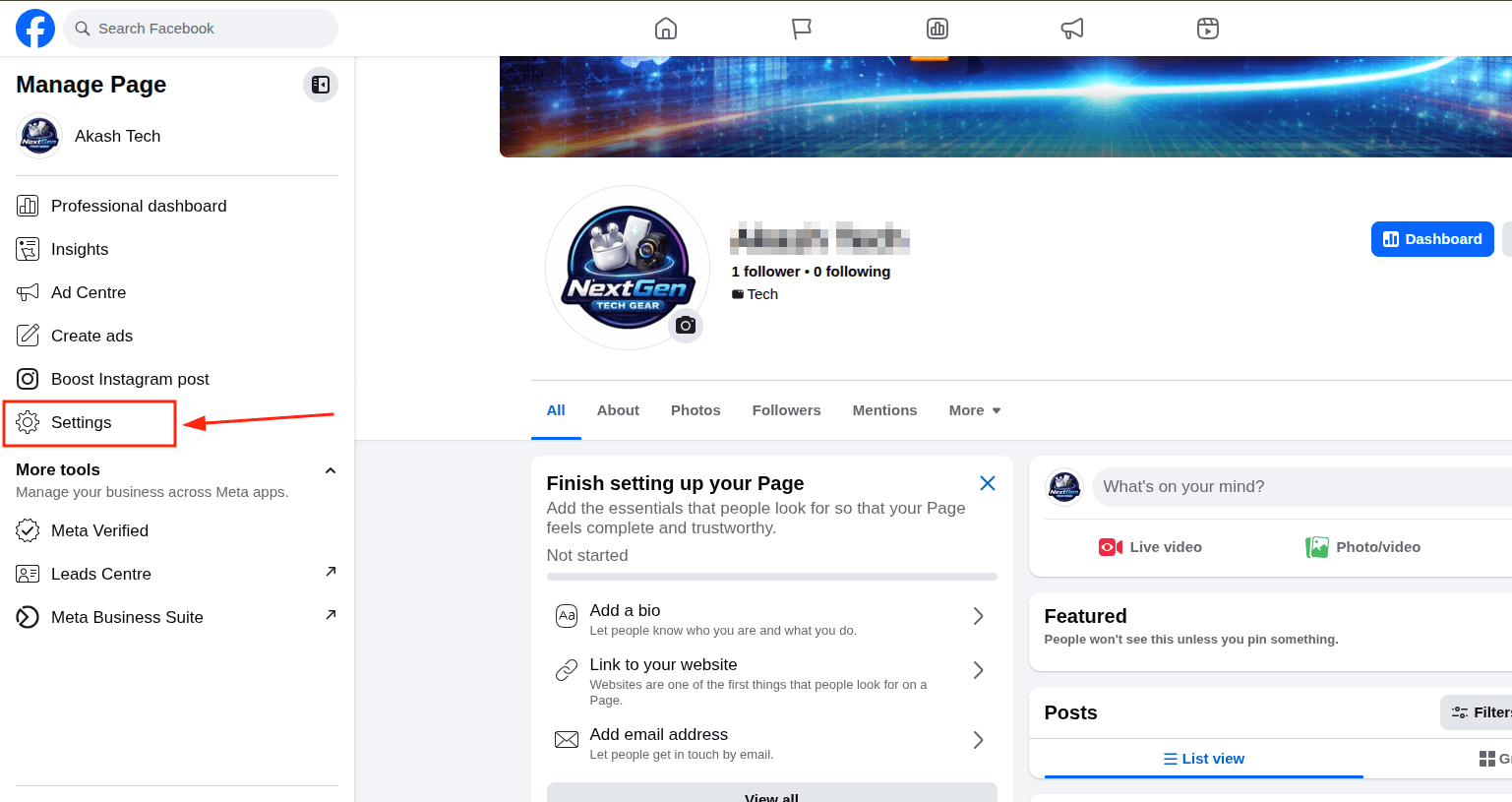
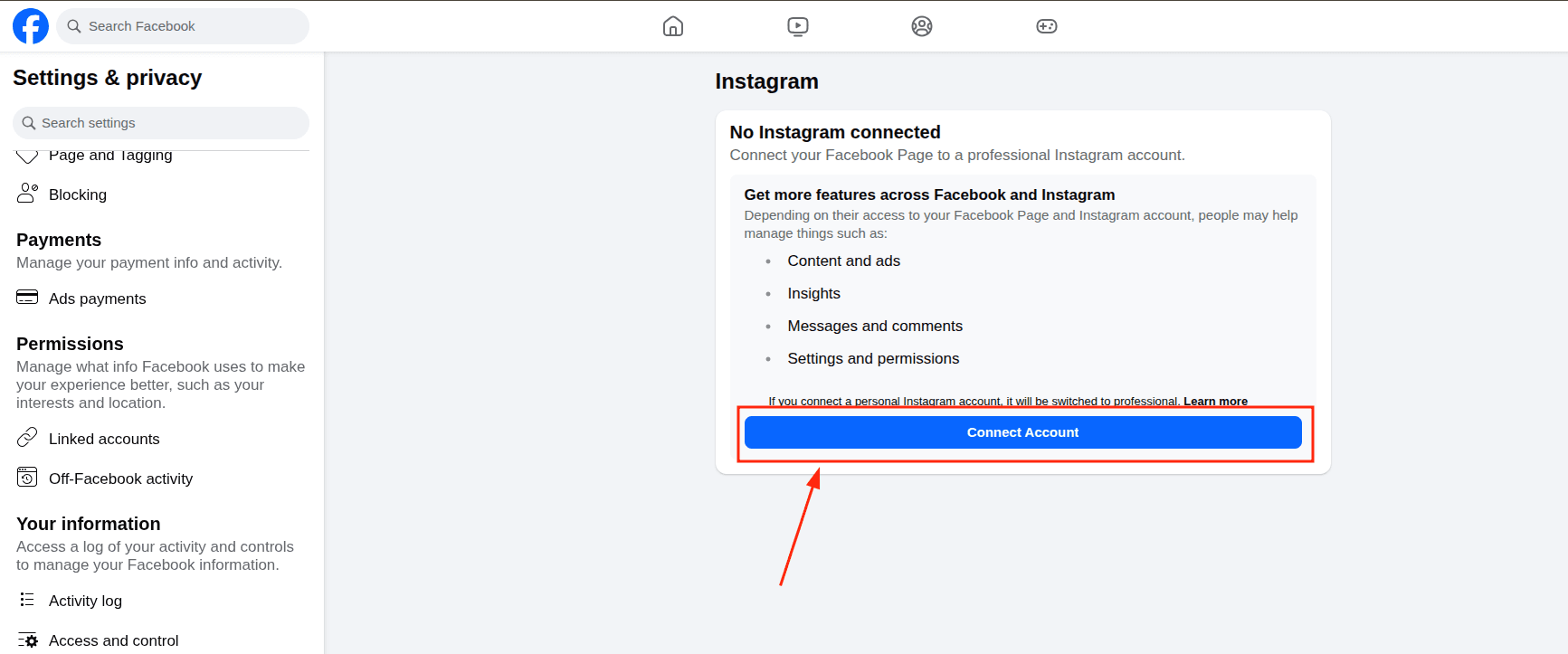
- Go to your Facebook Page.
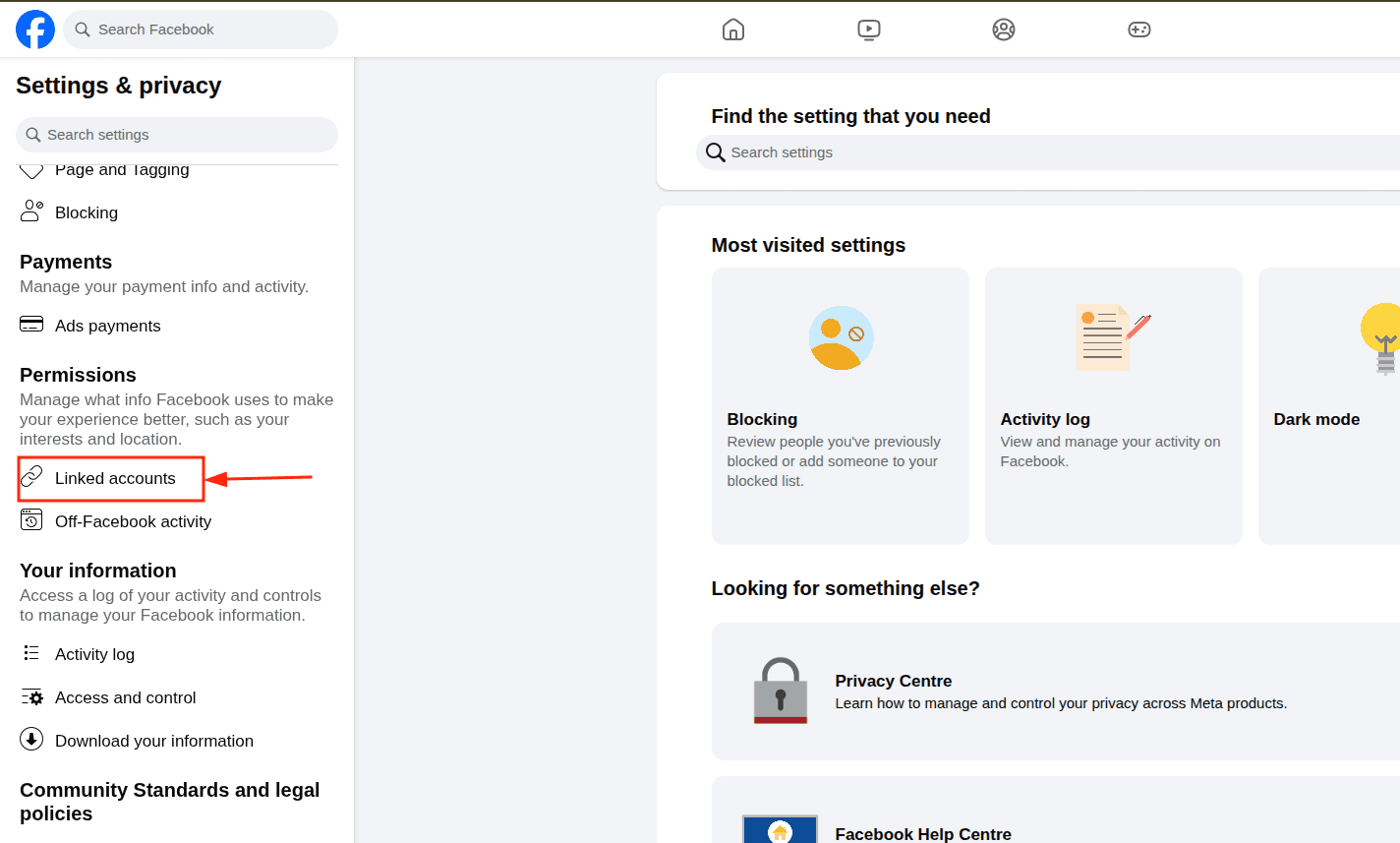
- Click Settings (left sidebar).
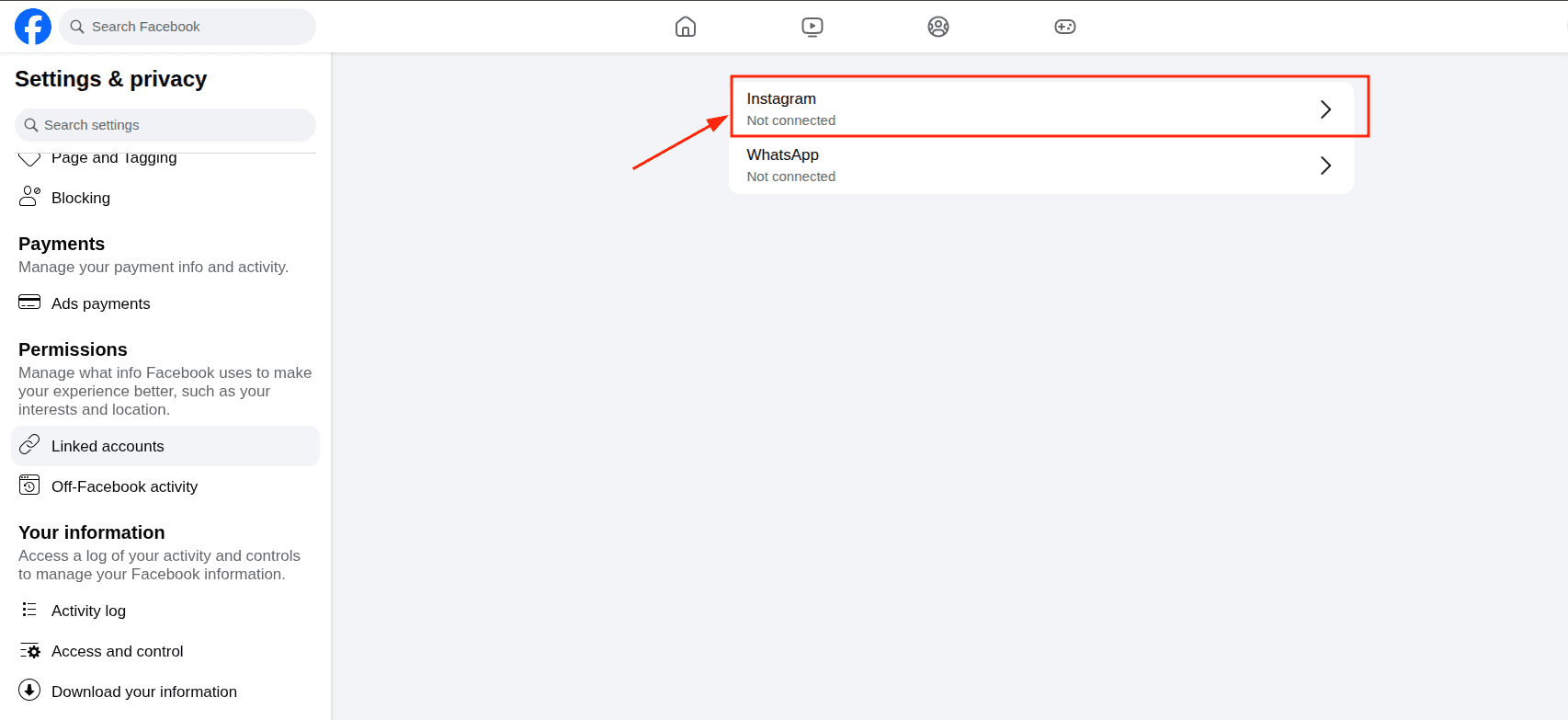
- Select Linked Accounts or Instagram.
- Click Connect Account.
- Log in to your Instagram Business account.
- Click Confirm / Connect.
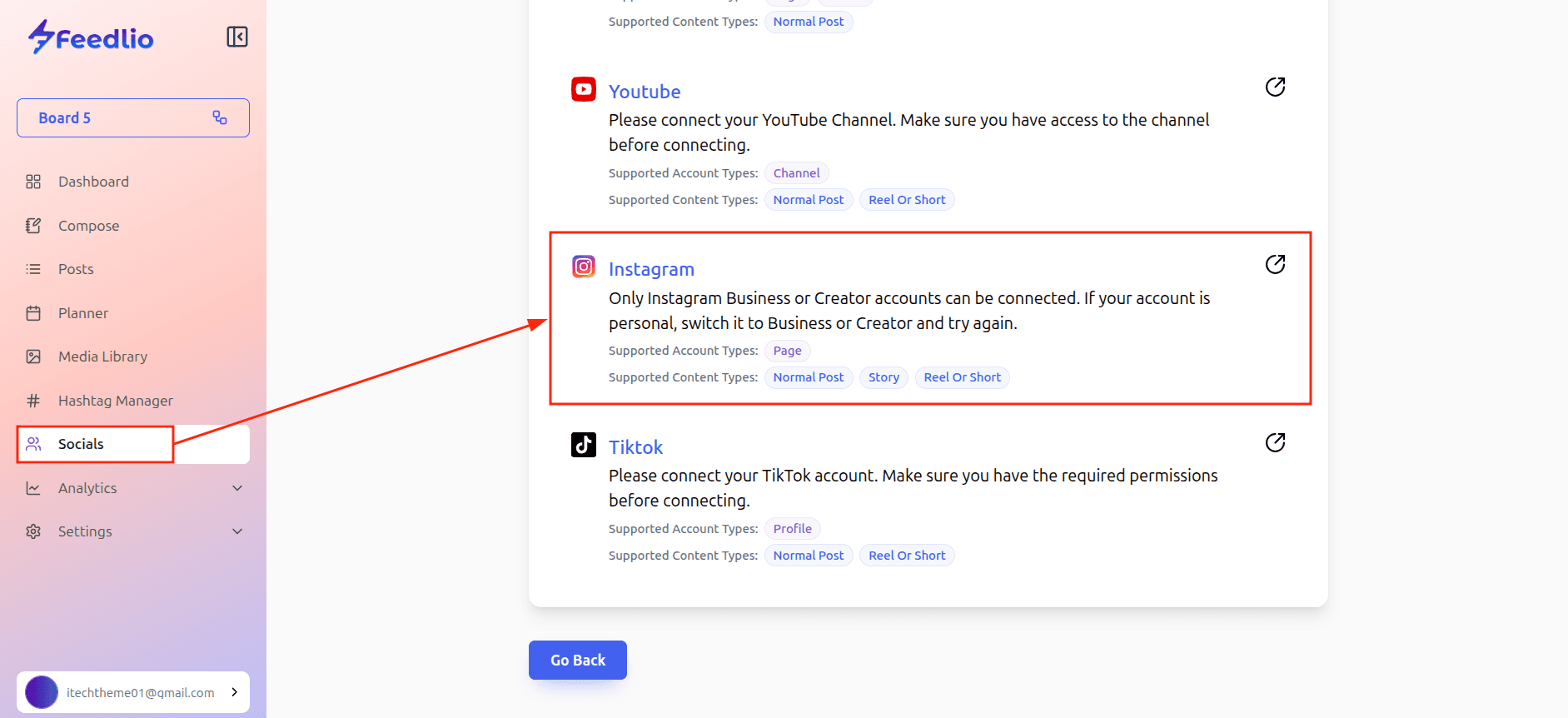
Adding Instagram to Feedlio
To link your Facebook account and begin managing your content, navigate to the Socials menu in the left-hand sidebar and click the "+ Add Social" button. From the list of available platforms, select Instagram.
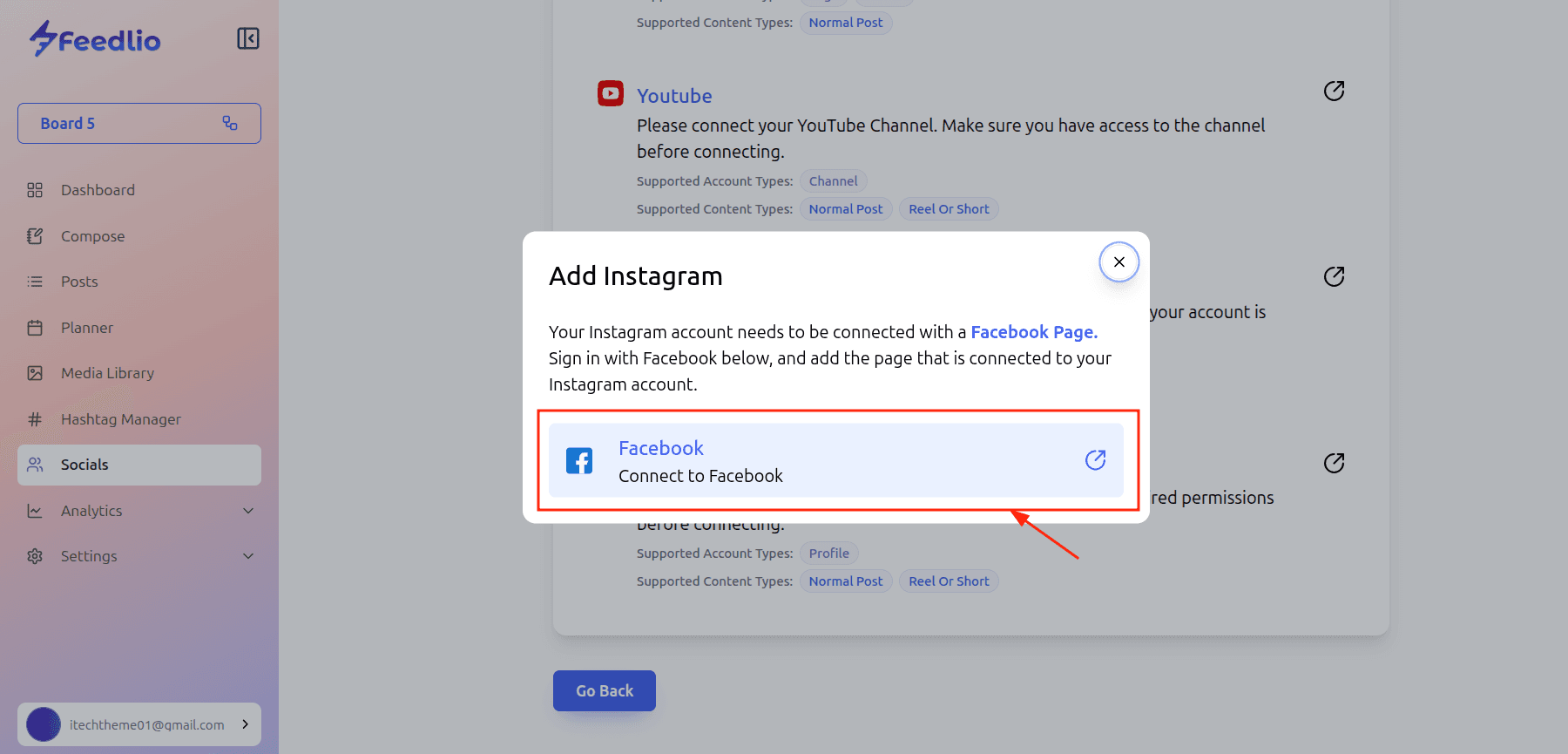
The Connection Process
- Authorization: A Facebook pop-up will appear asking you to log in (if you aren't already) and "Continue as [Your Name]."
- Select Pages: You will be shown a list of all the Facebook Pages associated with your account. Select the specific Page(s) you want to manage through Feedlio.
Once you have authorized Feedlio via the Facebook pop-up, you will be automatically redirected back to your Feedlio dashboard. You will then see a list of all the Instagram accounts.
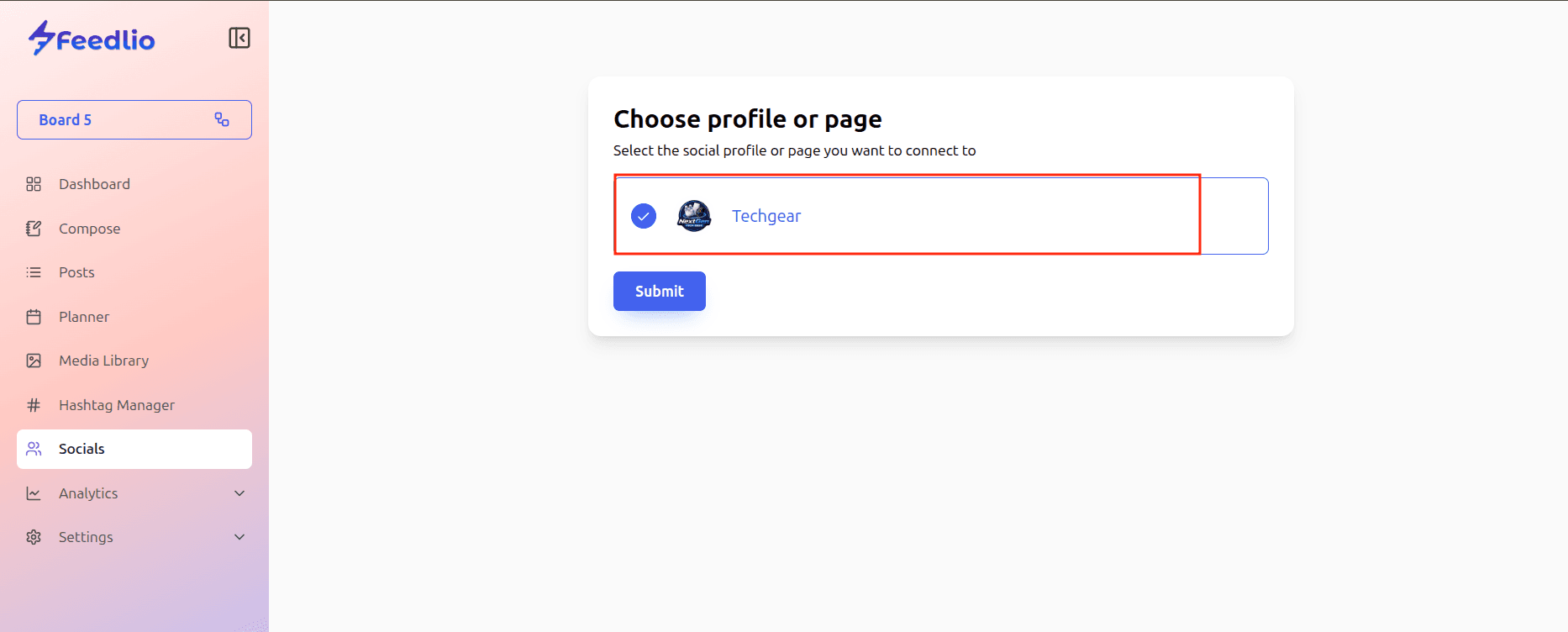
Select it, and you have now successfully added Instagram to Feedlio.