
Connection Setup
Resetting the Facebook and Instagram connection
Sometimes, a standard re-authentication within Feedlio isn't enough to resolve persistent issues. In these cases, you will need to perform a full reset by disconnecting Feedlio directly from your Facebook settings. This clears any corrupted data and allows for a fresh, clean connection.
Step-by-Step: Removing Feedlio from Facebook
- Access Business Integrations:
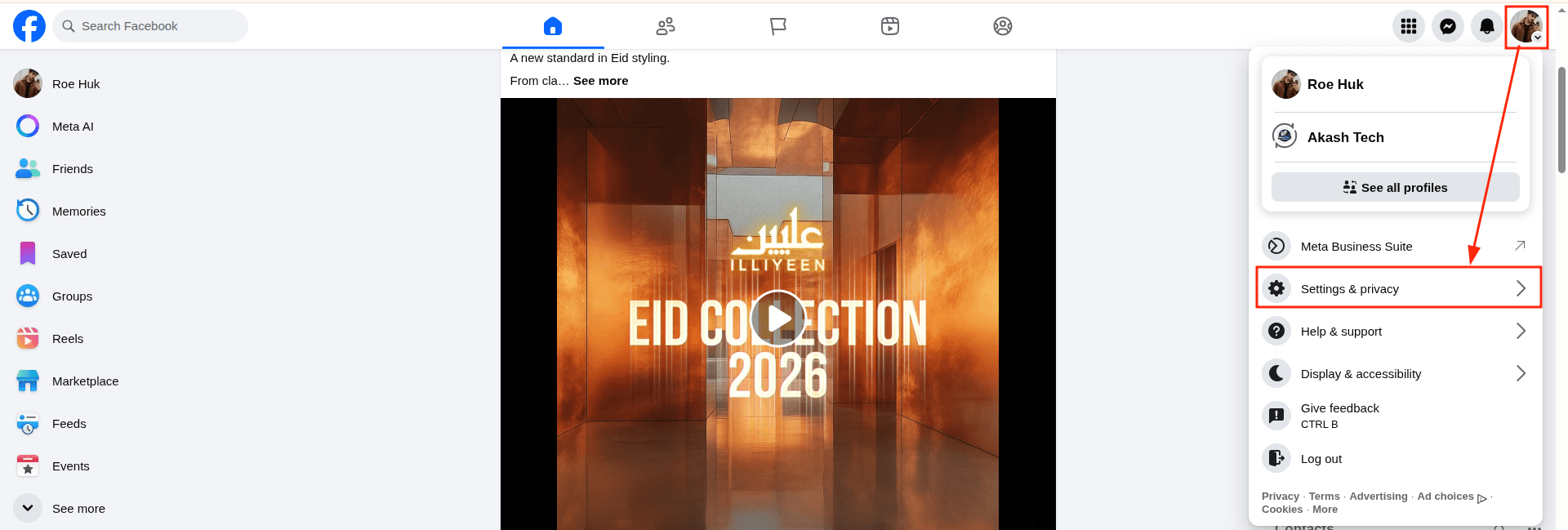
- Click your profile picture in the top-right corner of Facebook.
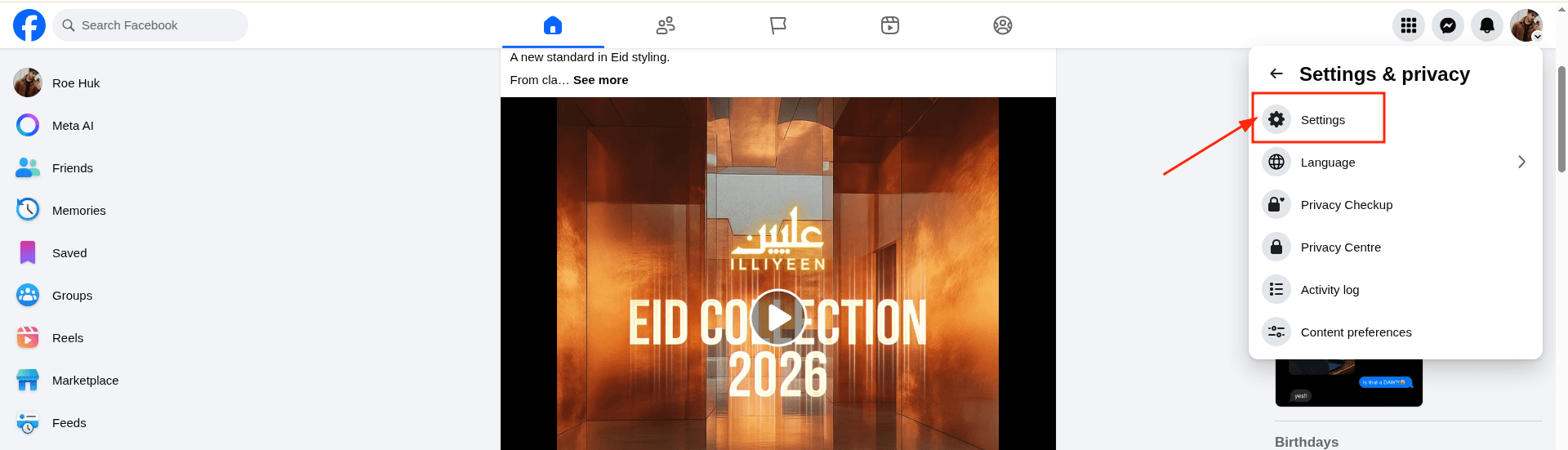
- Select Settings & privacy > Settings.
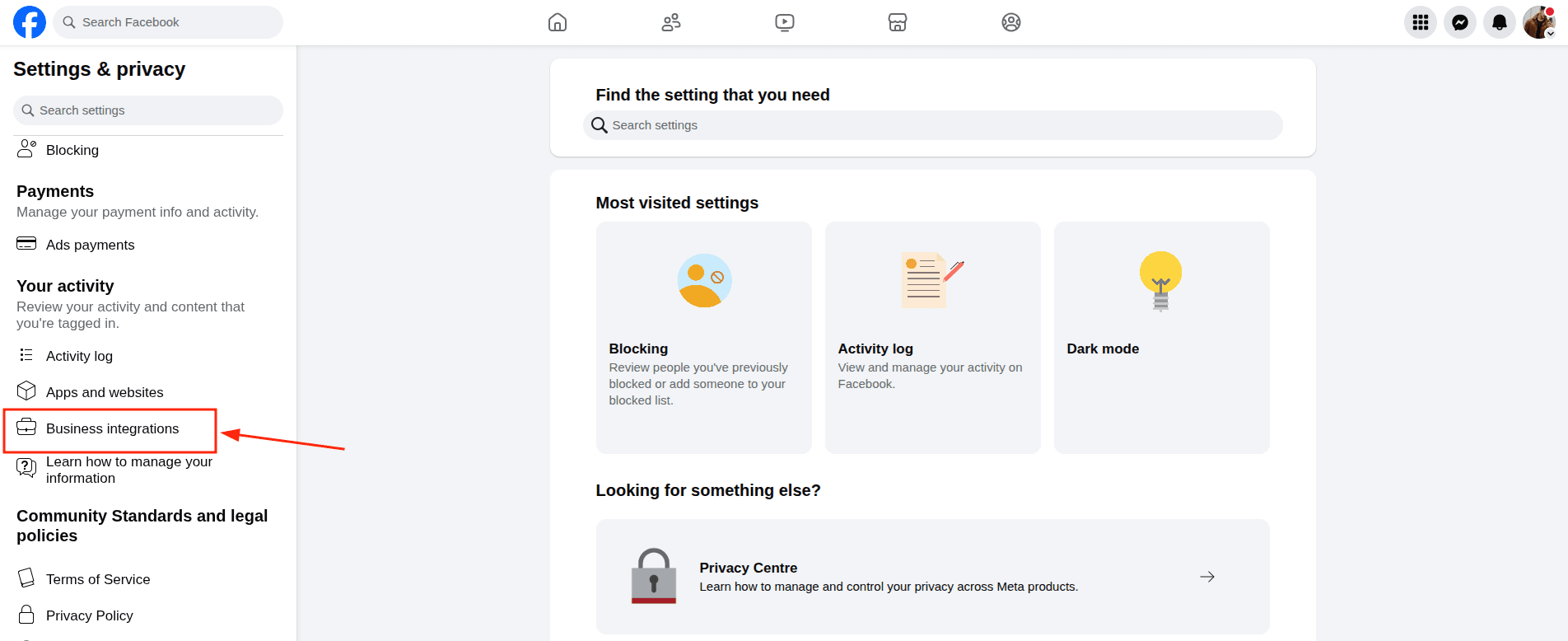
- In the left-hand menu, look for Business Integrations (it may be under a "Security" or "Apps and websites" section depending on your current Facebook interface version).
- Find the App: You will see a list of all the apps currently connected to your Facebook account. Use the search bar if you have a long list, or scroll down to find Feedlio.
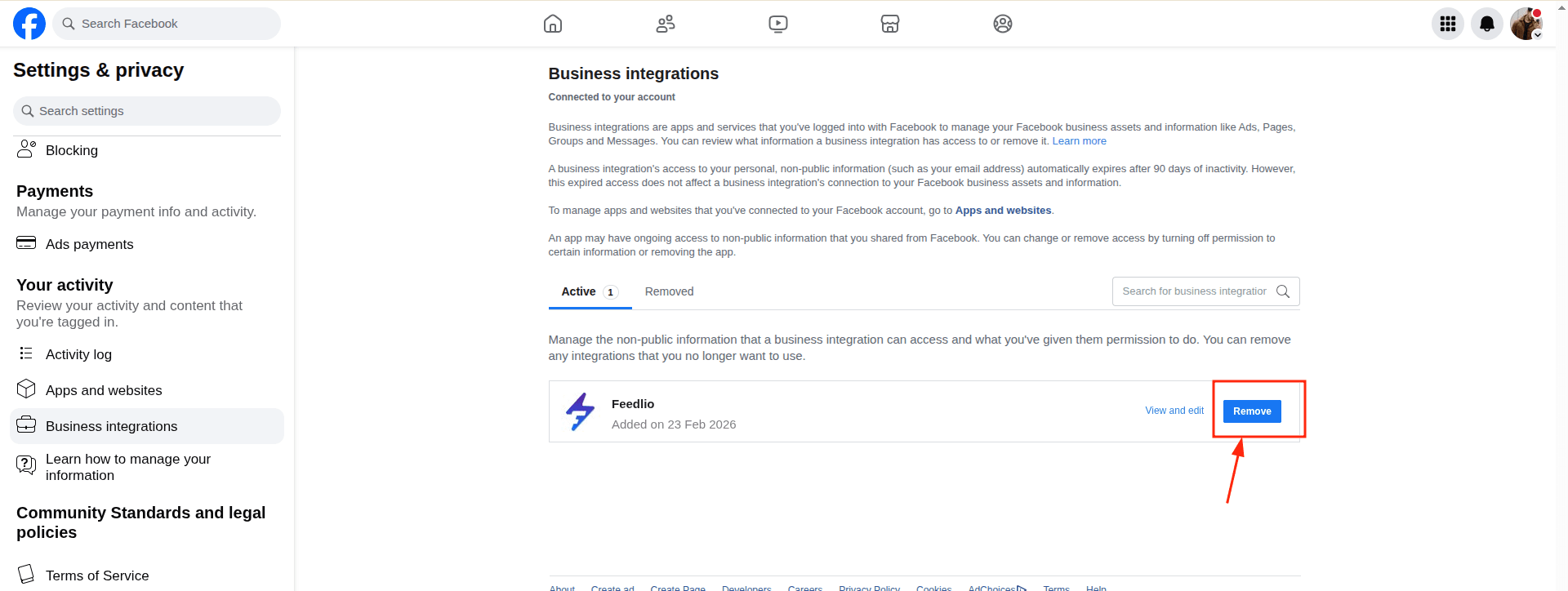
- Remove the Connection:
- Check the box next to Feedlio.
- Click the Remove button.
- Confirm: A confirmation window will pop up.
- Note: You will see a checkbox option asking if you want to delete all posts, videos, or events that Feedlio may have published to your timeline. Keep this unchecked if you want your past posts to remain on your Facebook Page.
- Click Remove to finalize the disconnection.