Connection Setup
Setting up YouTube on Feedlio
To unlock Feedlio’s full publishing suite, please connect your YouTube account. Note that an active YouTube channel is required to post or schedule your content.
Step-by-Step Guide to Creating a YouTube Channel
- Sign In: Go to youtube.com and sign in using your Google account. (If you don't have one, you can create one during this step).
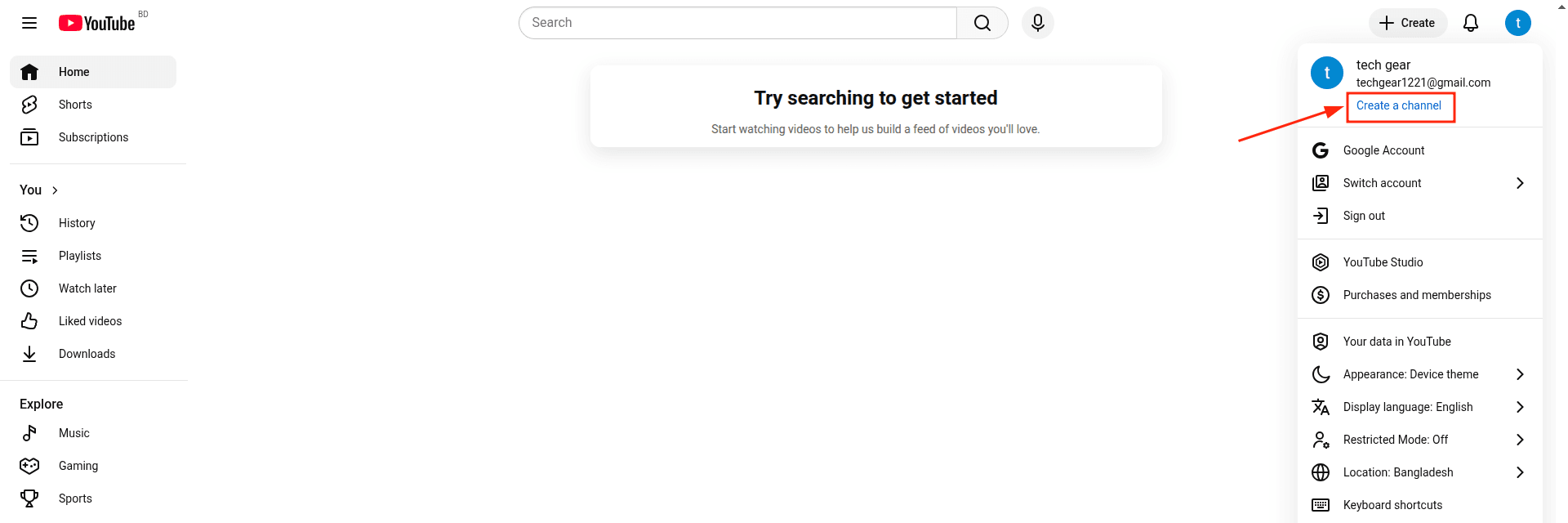
- Access Channel Settings: Click on your profile picture in the top-right corner of the screen. From the dropdown menu, select Settings.
- Create a New Channel: Look for an option that says "Add or manage your channel(s)." Click on this, and then click "Create a channel."
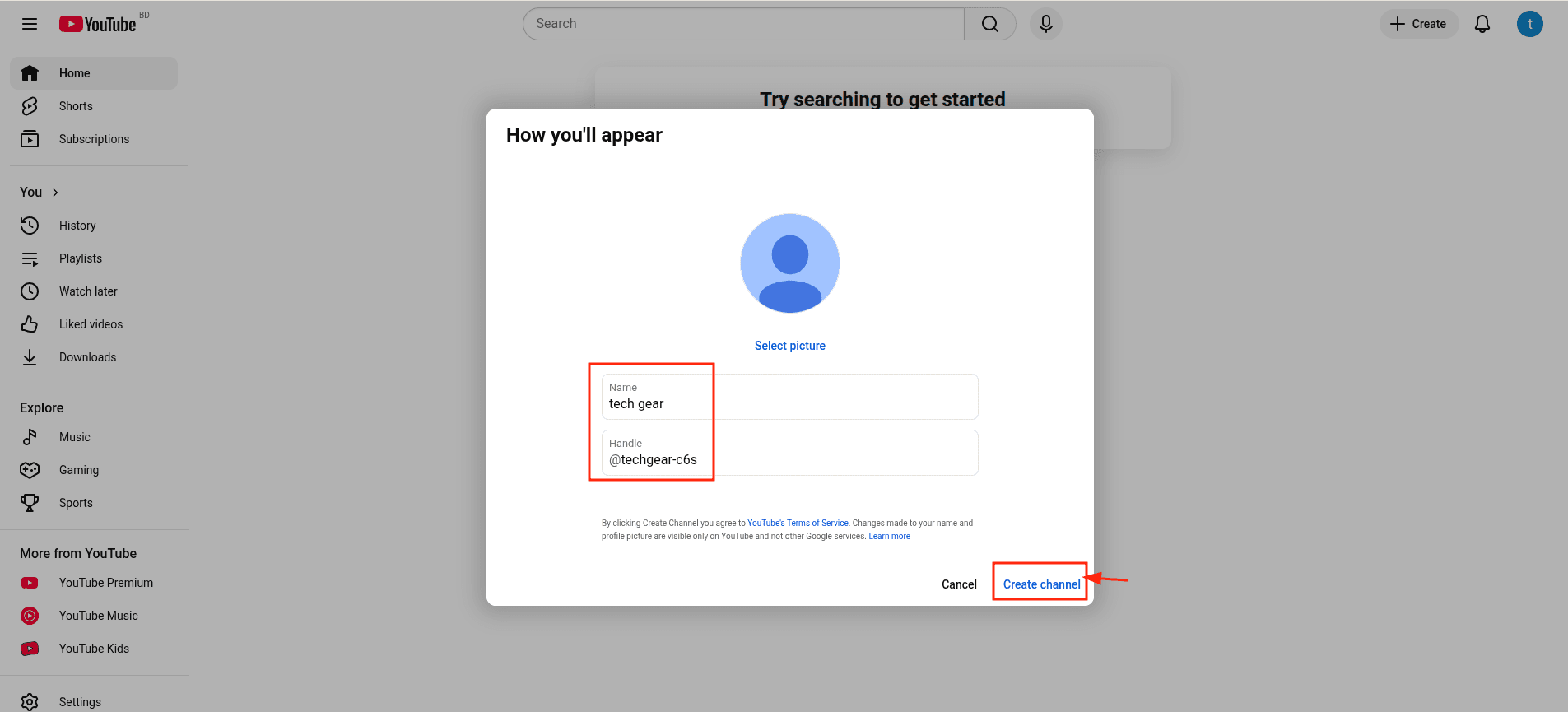
- Name Your Channel: You will be prompted to enter a Channel Name and choose a Handle (your unique YouTube ID).
- Finalize: Once you’ve entered your details, click "Create channel."
Adding YouTube to Feedlio
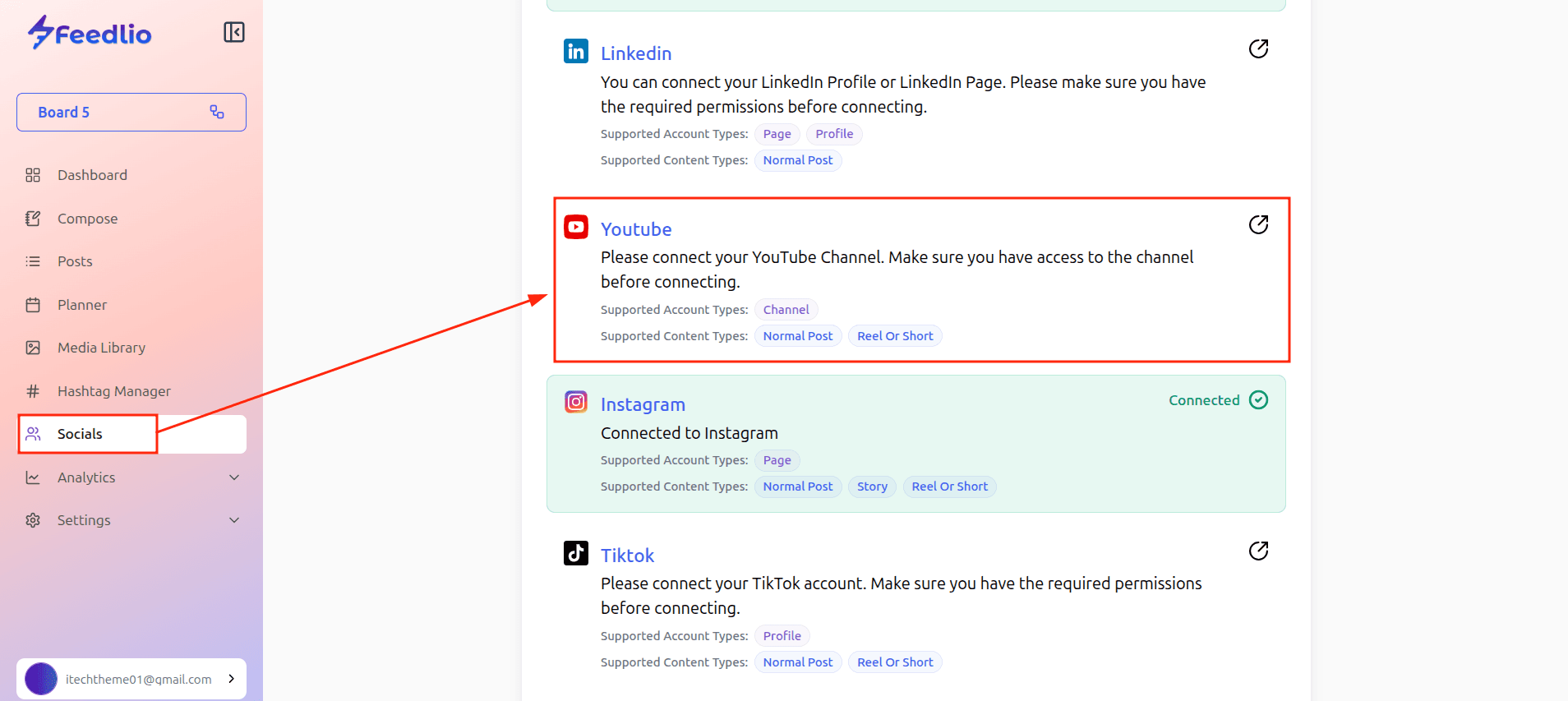
- Navigate to Socials: Go to the Socials menu on your left-hand menu.
- Add New Account: Click the + Add Social button.
- Select YouTube: Choose YouTube from the list of available platforms.
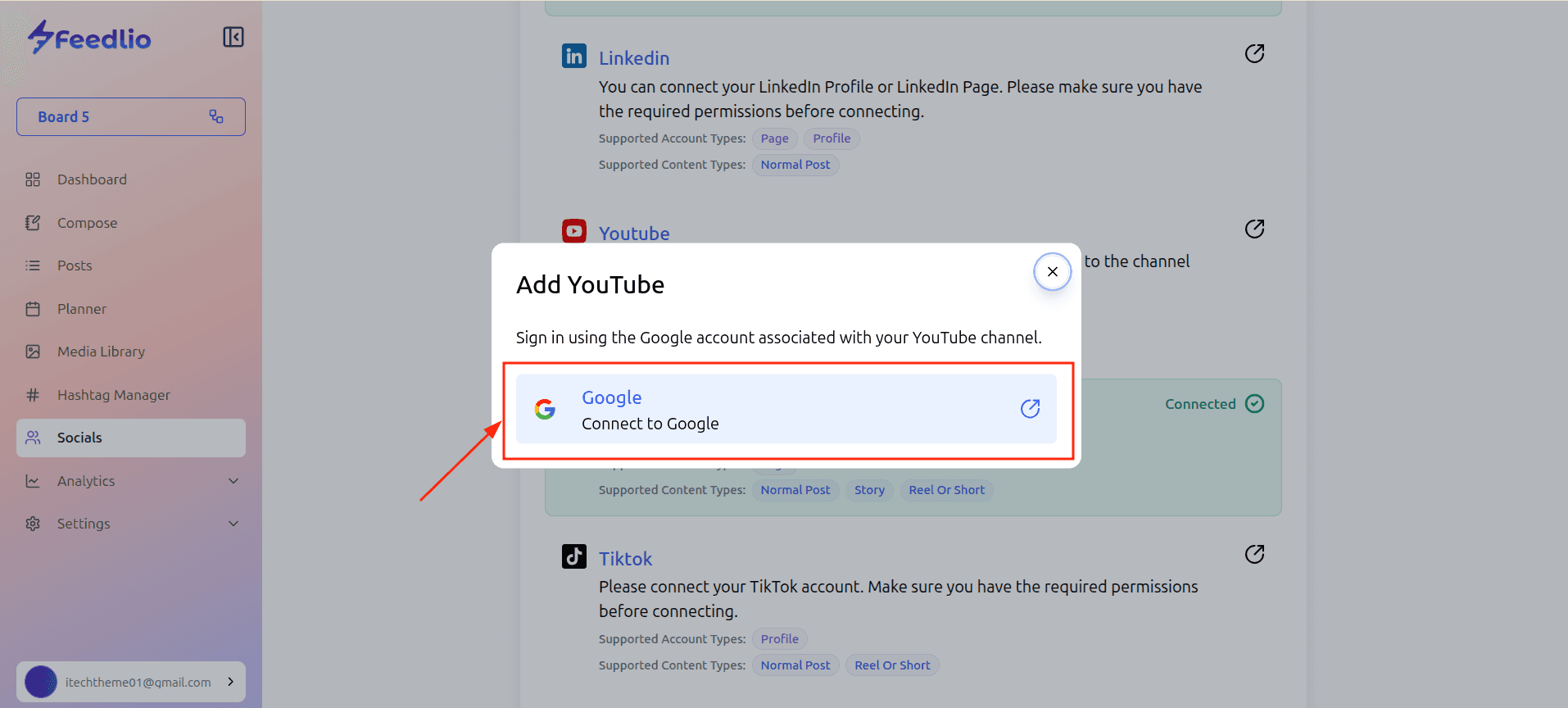
- Google Authentication: A pop-up will appear asking you to log in with your Google account. Use the email address associated with your YouTube channel.
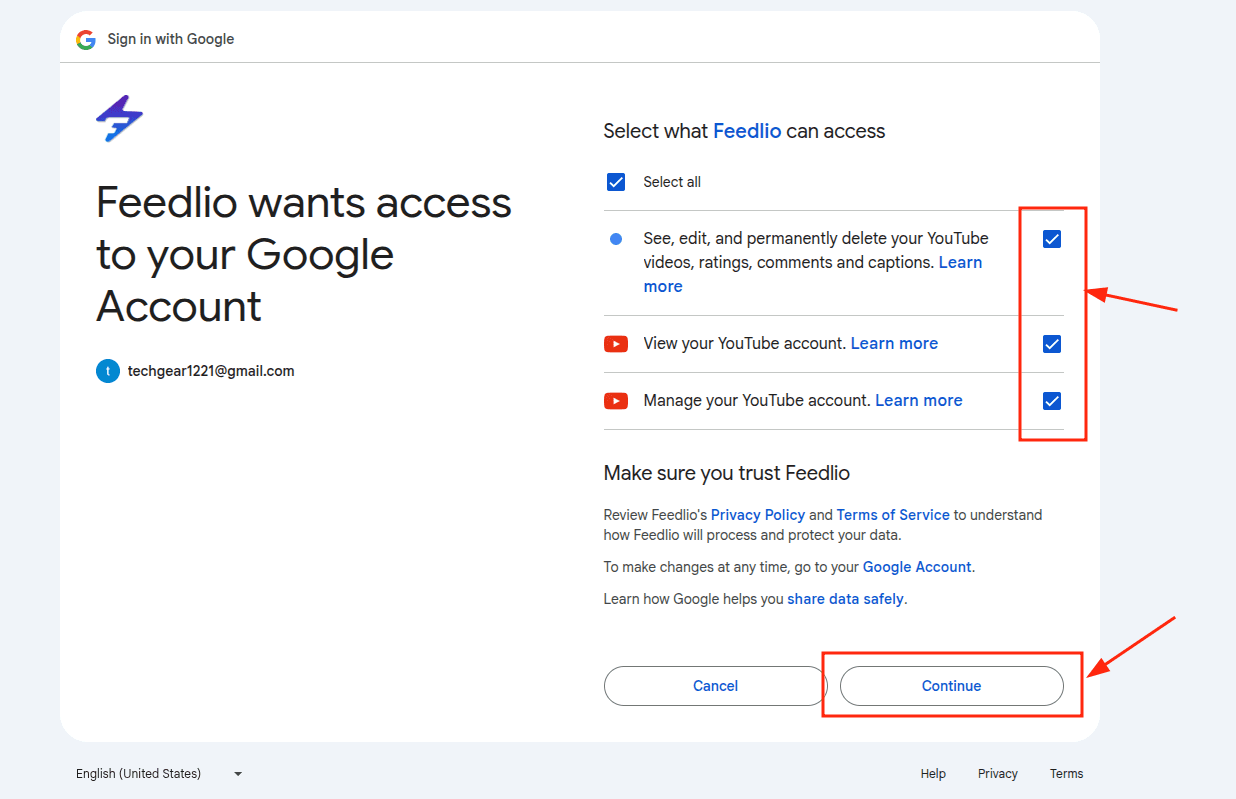
- Grant Permissions: Google will prompt you to authorize Feedlio. Click Allow (or "Continue") to grant Feedlio the necessary permissions to manage your channel, upload, and schedule videos on your behalf.
- Select Your Channel: Once authenticated, you will be redirected back to Feedlio. A list of your associated YouTube channels will appear.