Feedlio lets you schedule your social media posts ahead of time, so you can keep your feed fresh without having to be online 24/7. Manage all your accounts in one place: publish to five different social media platforms simultaneously, using either the same content or unique posts for each.
The idea of a posting plan
With Feedlio, your posting plan gives you total control over your digital presence by letting you queue content whenever inspiration strikes. Whether you want to schedule an image for Facebook tomorrow at 9:00 AM using the Schedule feature or send an update immediately with Publish Now , managing your timeline is effortless.
You can track all your upcoming content in the Planner section and use the Platform Selection tool to choose exactly where your post goes; if you only want to reach your audience on Facebook and Instagram, simply select those two and skip the rest with a single click.
How to set up a posting plan
Step-01: To get started, navigate to the Compose menu to build your new post. Within the Select Platform(s) section, you can choose from three distinct content categories: Post, Reels/Shorts, or Story.
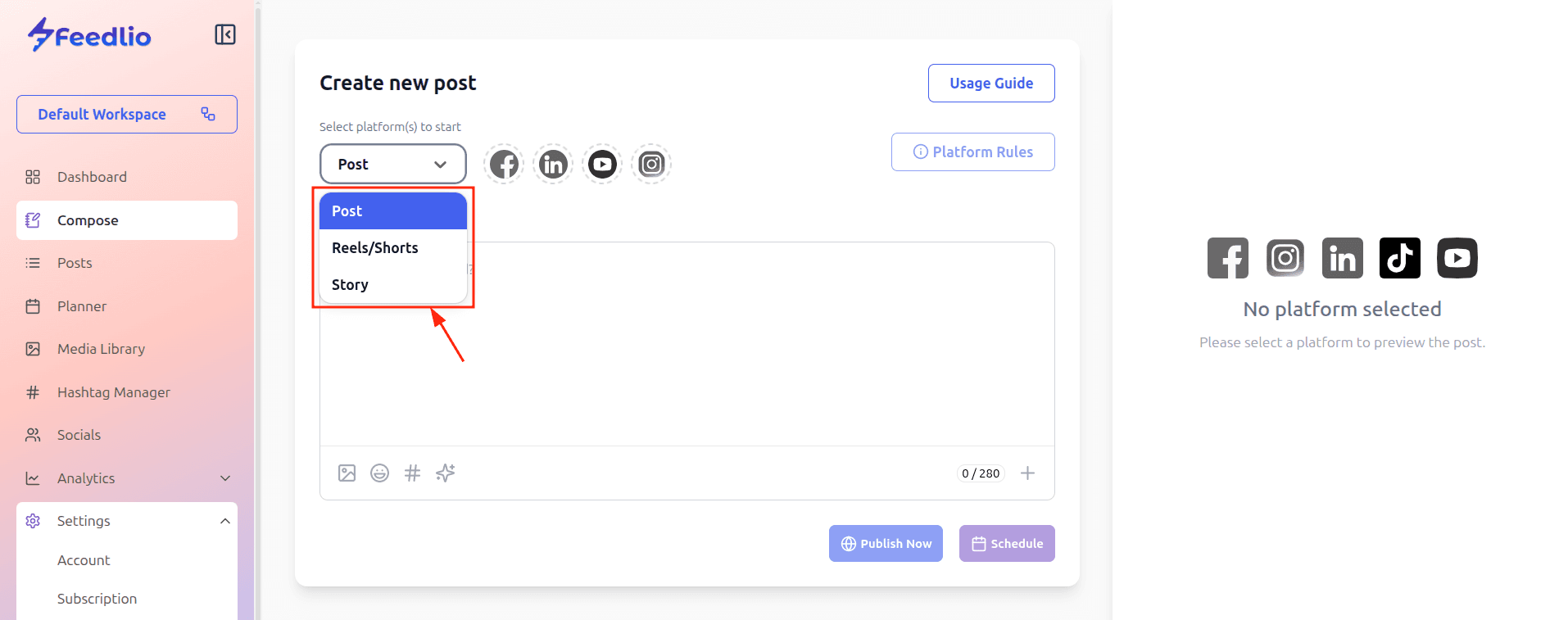
As you toggle between these options, Feedlio’s intelligent interface automatically updates the available social platforms to match the format; for instance, selecting Story will filter your list to only show platforms that support that feature, ensuring your content is always compatible with the network's specific features before you even begin drafting.
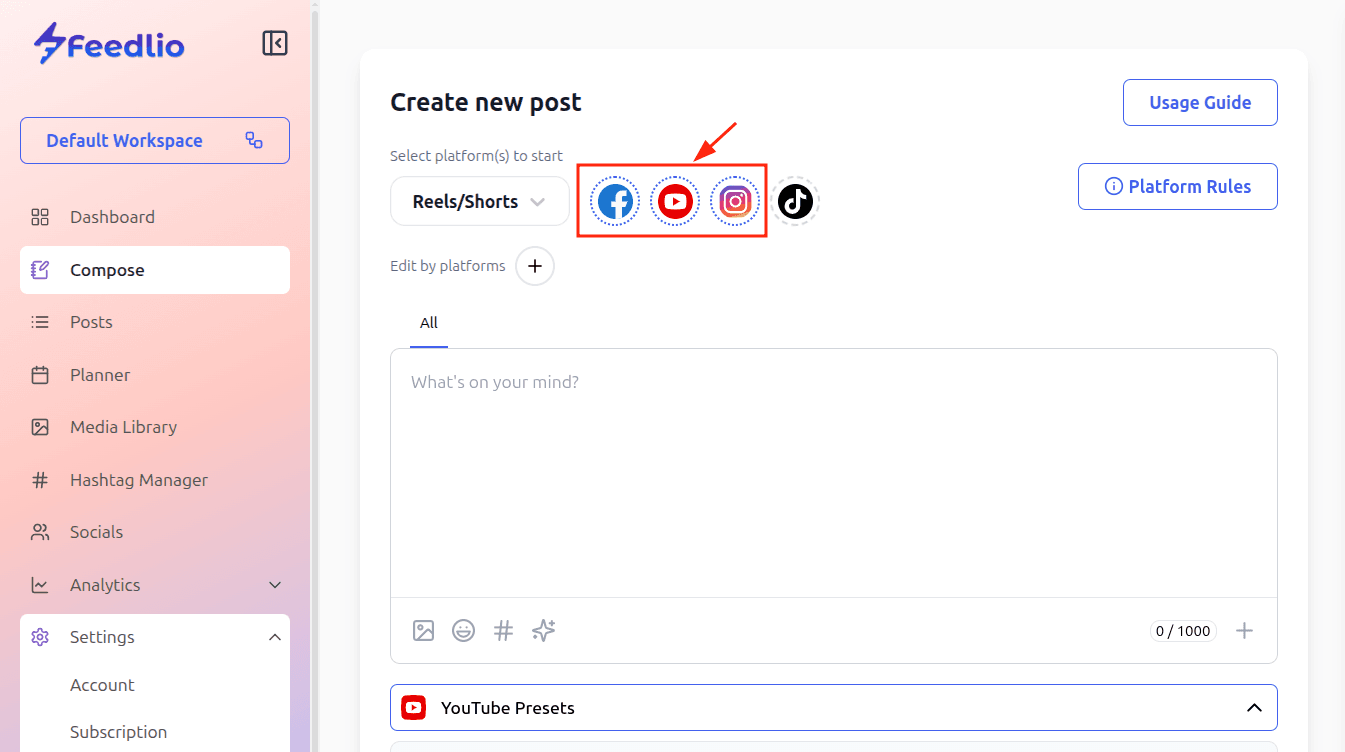
Step-02: You have the flexibility to either select all supported social platforms at once for maximum reach or choose specific accounts and skip the rest to keep your content targeted.
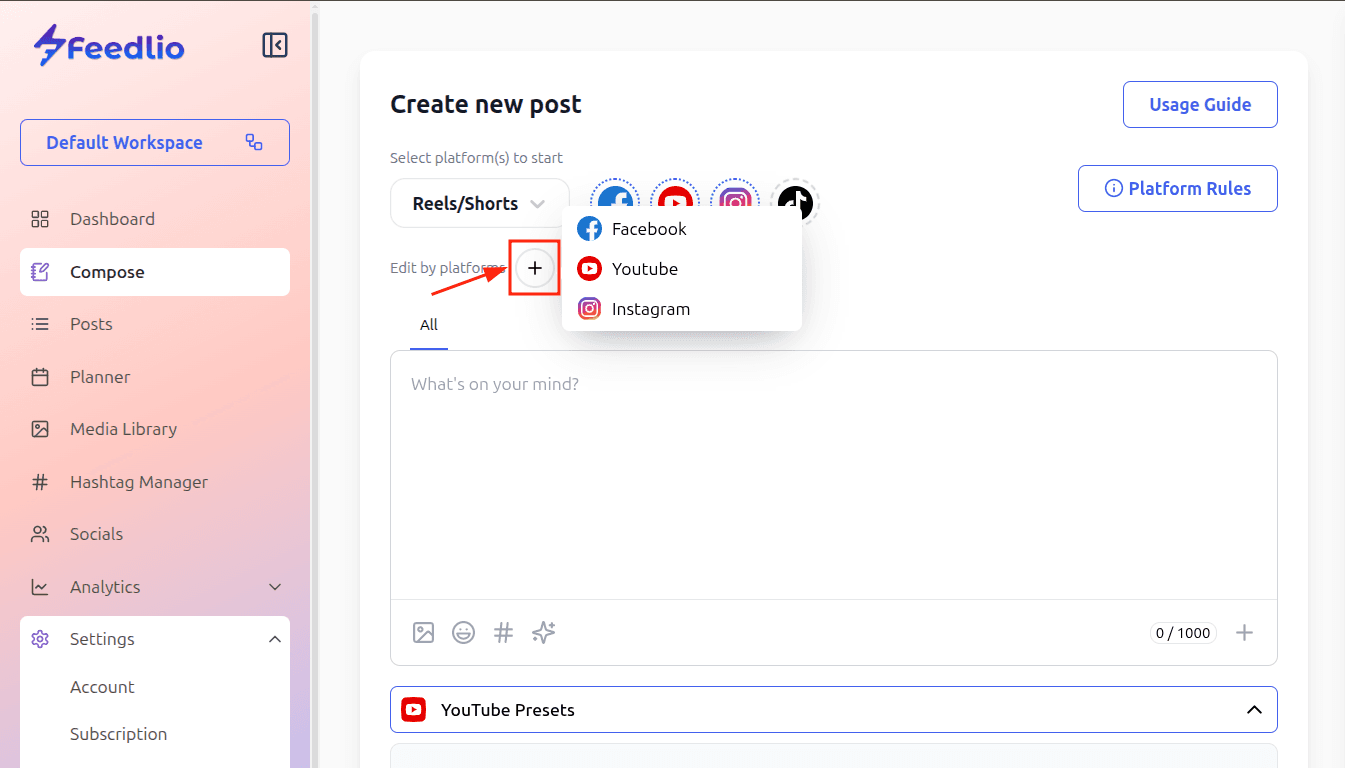
Step-03: Once you move to the Edit by Platform section, simply click the "+" icon to see a list of the social channels you previously selected. By selecting a specific platform from this list—like Facebook—you unlock the ability to customize that post individually, allowing you to tailor your captions, hashtags, or media specifically for that audience while keeping your other content unchanged. If you prefer to keep your content consistent across all platforms, you can simply skip the Edit by Platform section and proceed with your original draft.
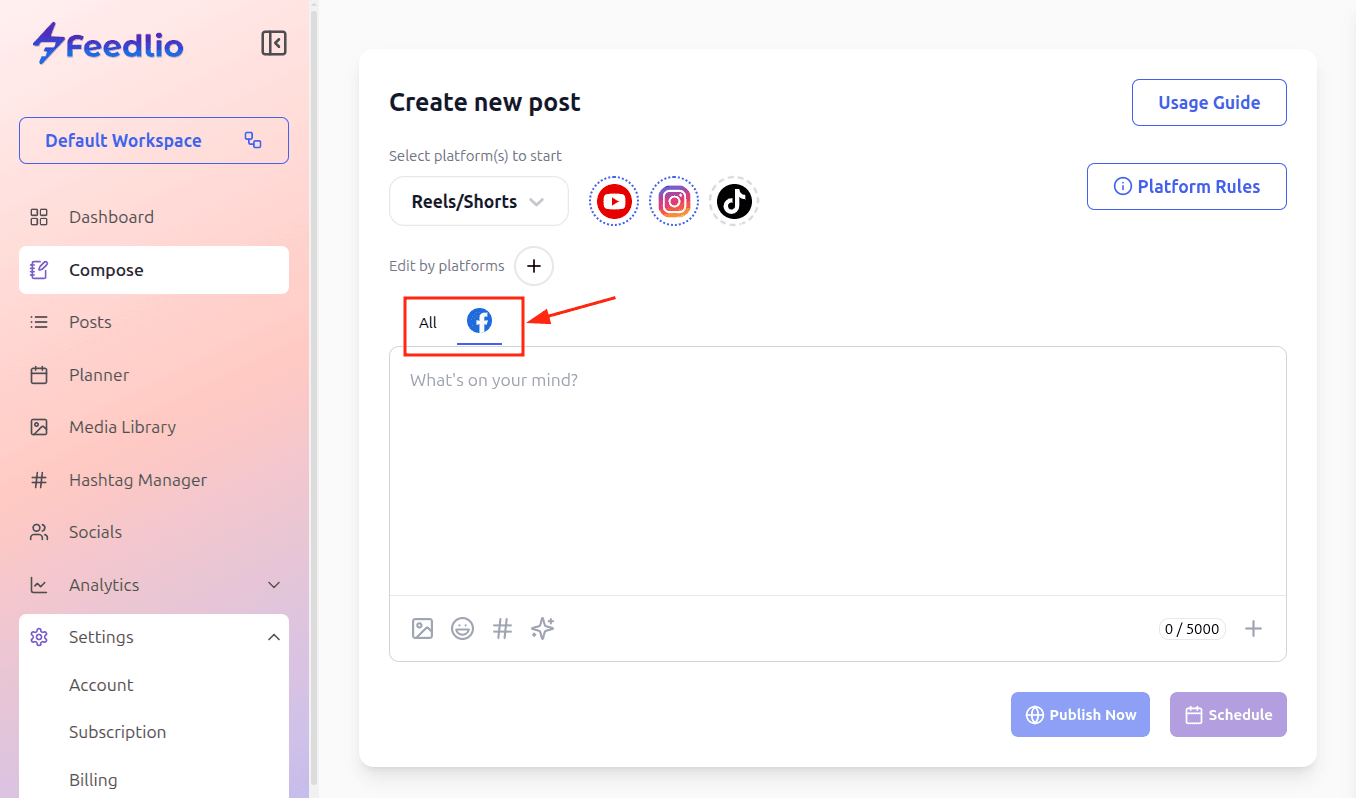
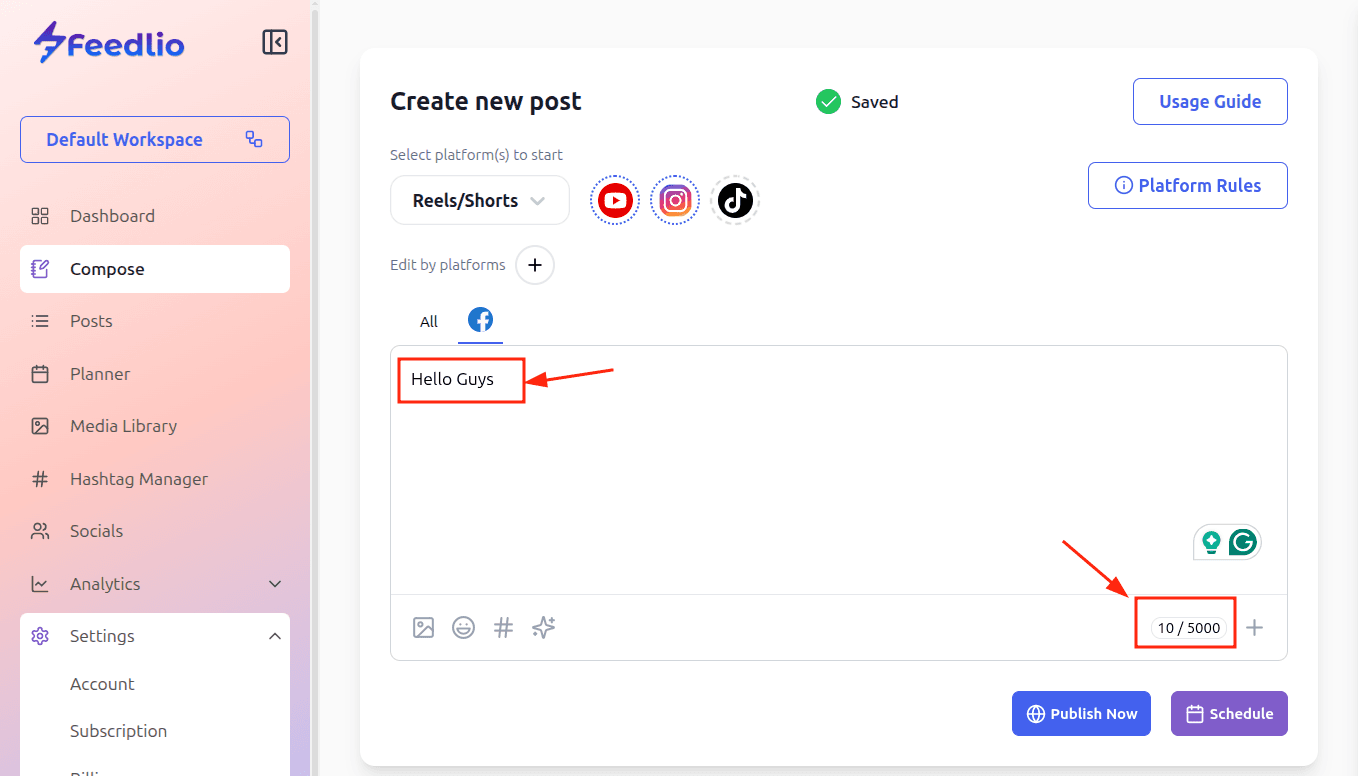
Step-04: Within the Content section, you will notice two distinct tabs: All and Facebook. Because Facebook was selected in the previous step, it now has its own dedicated tab, allowing you to craft unique content specifically for your Facebook audience. Meanwhile, the All tab represents your other two selected platforms, ensuring their content remains identical while you customize your Facebook post independently.
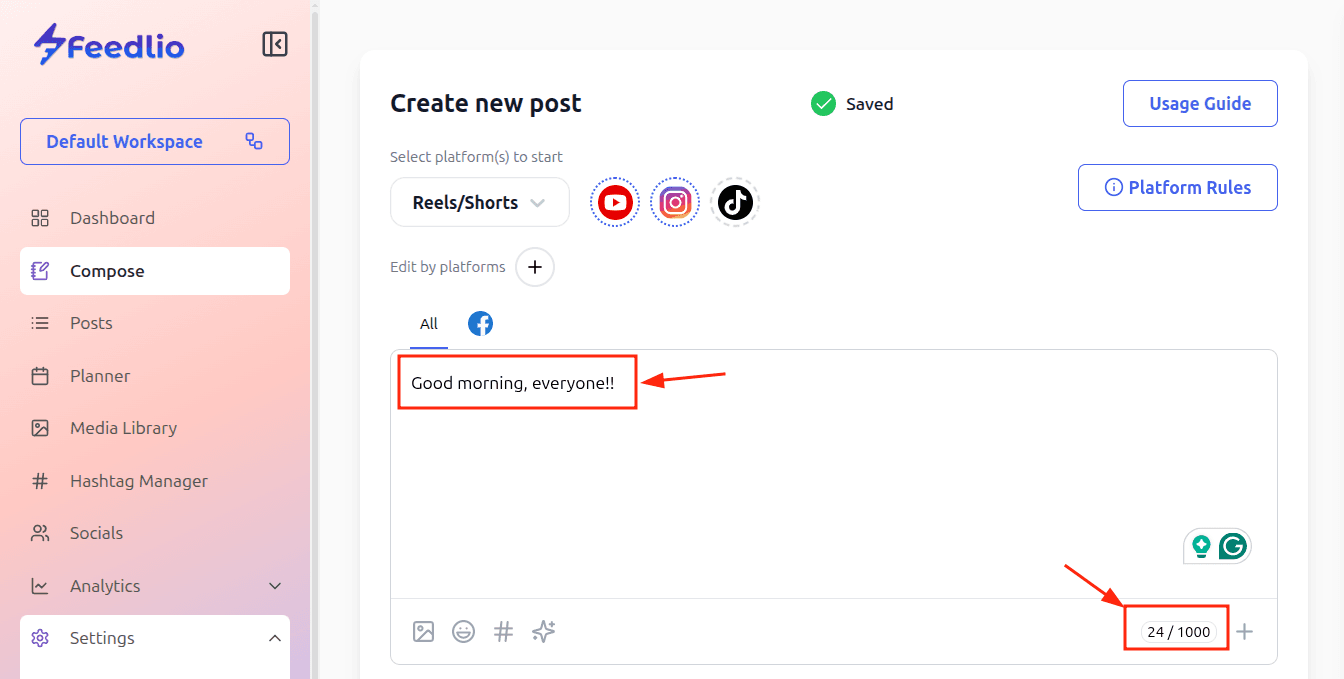
As you begin drafting your post, you can write freely while keeping an eye on the character limit displayed in the bottom-right corner. This real-time counter ensures your content perfectly fits the specific requirements of each platform, so you never have to worry about your captions being cut off.
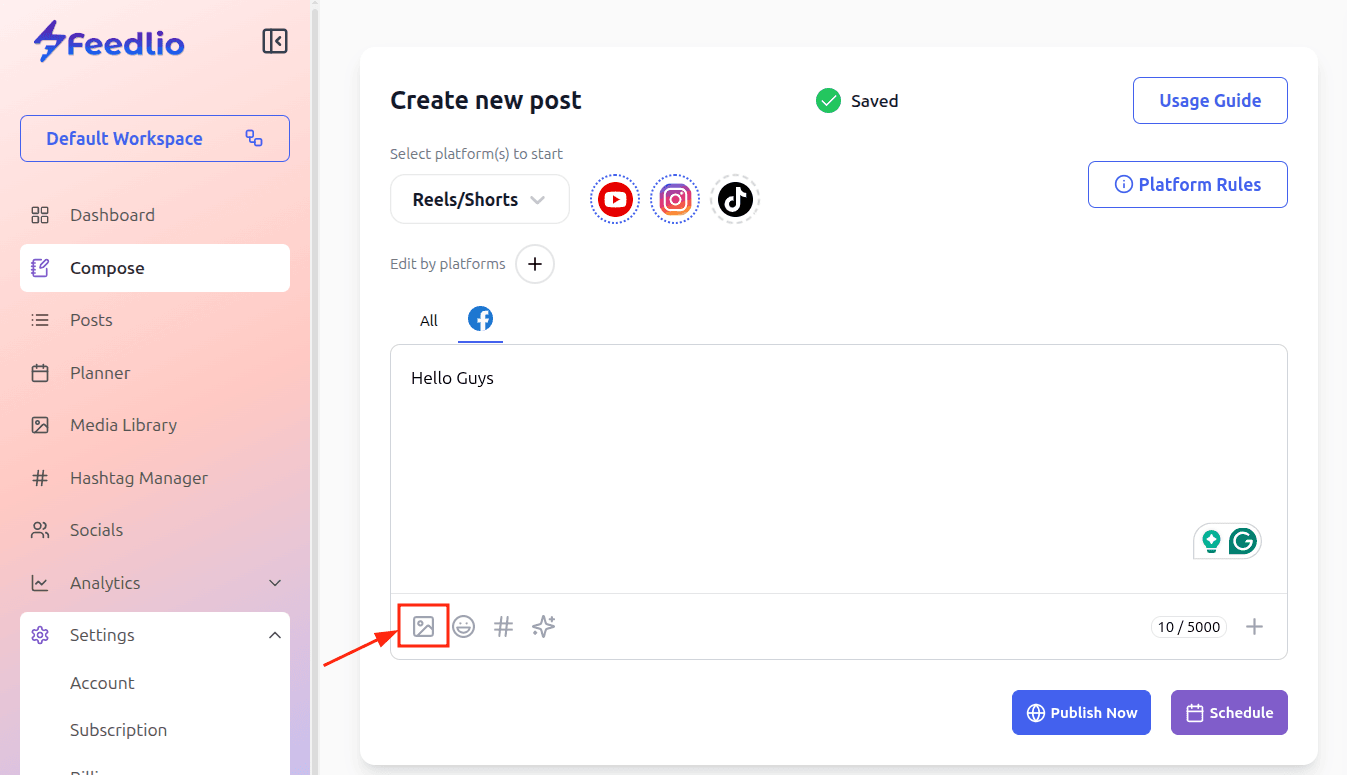
Step-05: Enhance your post by clicking the image icon to add visual content directly from your Media Library.
You can instantly select a previously uploaded file or upload a new asset on the fly to include it in your draft. Alternatively, you can add media by entering a direct URL, with the Media Name field being entirely optional for your convenience. Feedlio supports a wide range of formats to ensure your visuals look their best, including .png, .jpg, .gif, .svg and .webp for images, as well as .mp4 for high-quality video content.
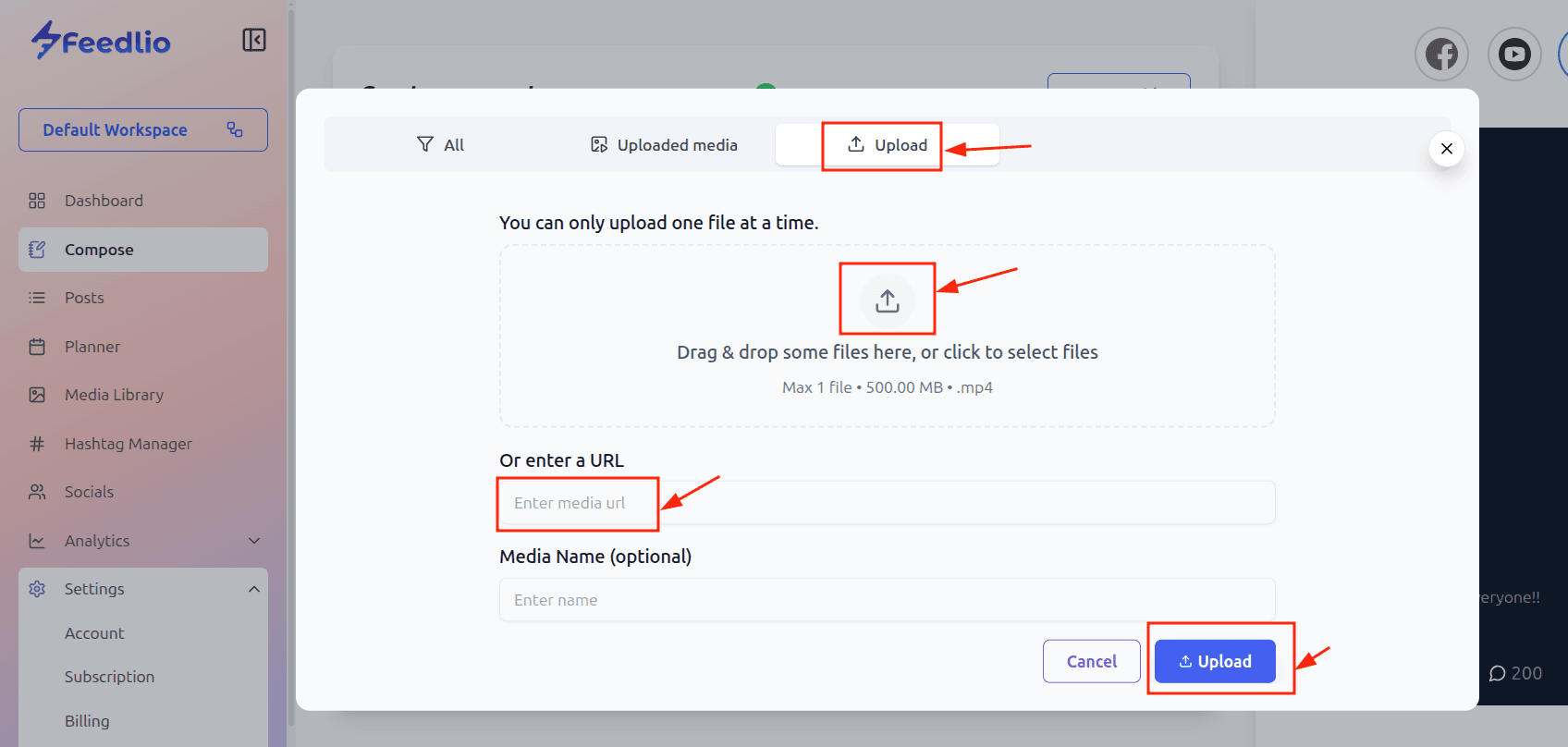
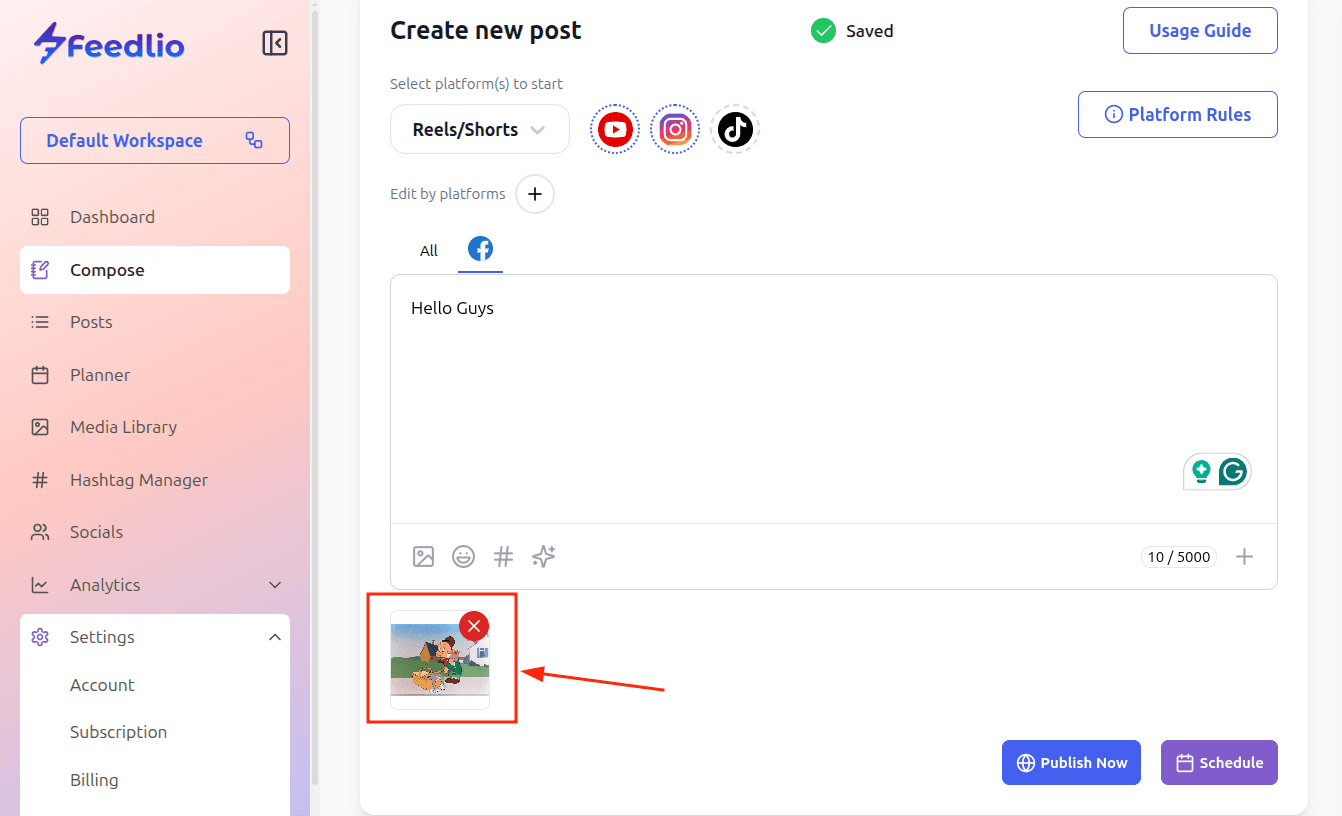
Once your media has successfully uploaded, it will appear instantly in the Post Attachment section, giving you a clear view of exactly what will be published alongside your text.
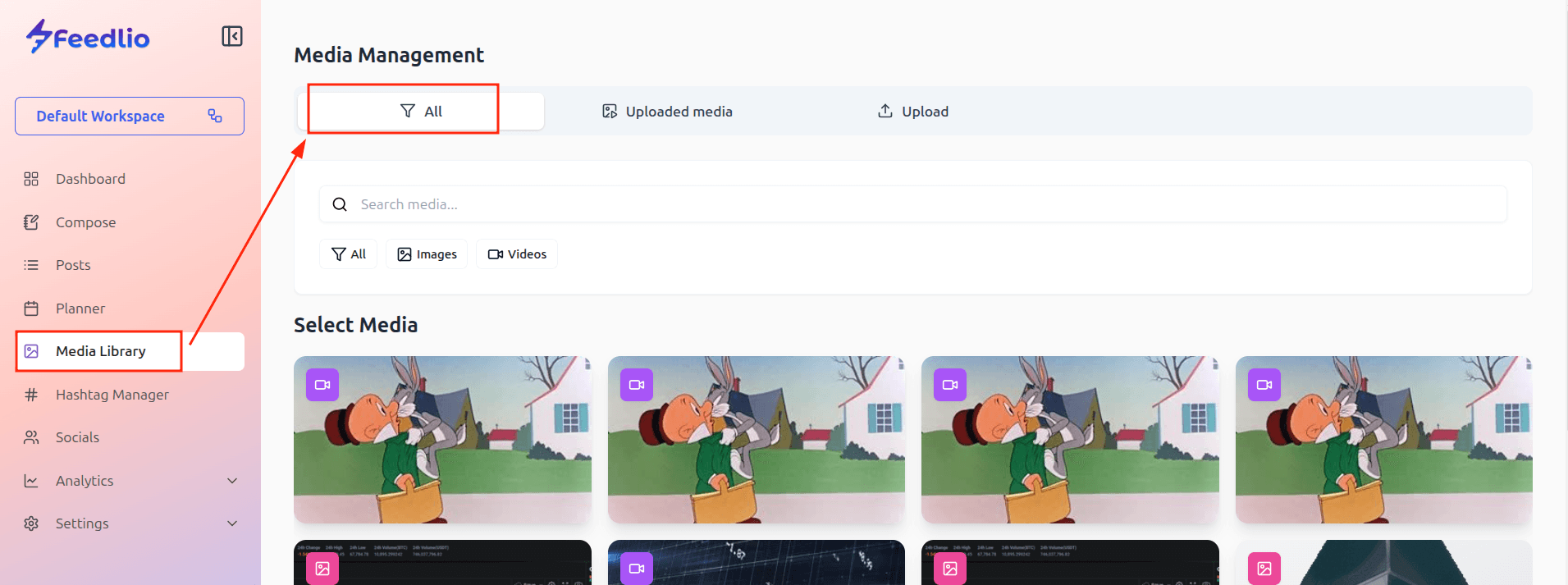
For full control over your brand's visuals, you can also navigate to the Media Library in the left-hand menu to organize, preview, and manage all your uploaded media in one central hub.
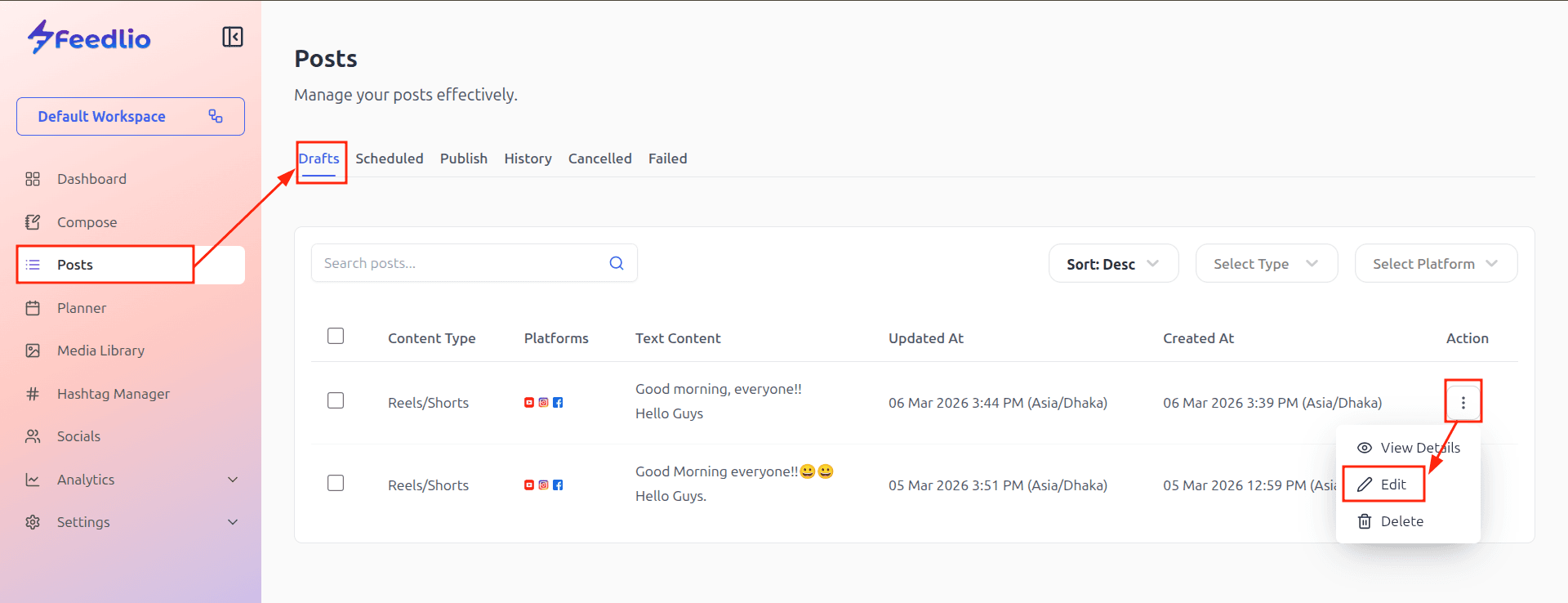
Step-06: To resume your work, simply navigate to the Posts left-hand menu and select the Drafts tab, where your saved content is stored. Locate your post, click the three-dot menu on the right, and select the Edit option to jump back into the composer and finalize your message.
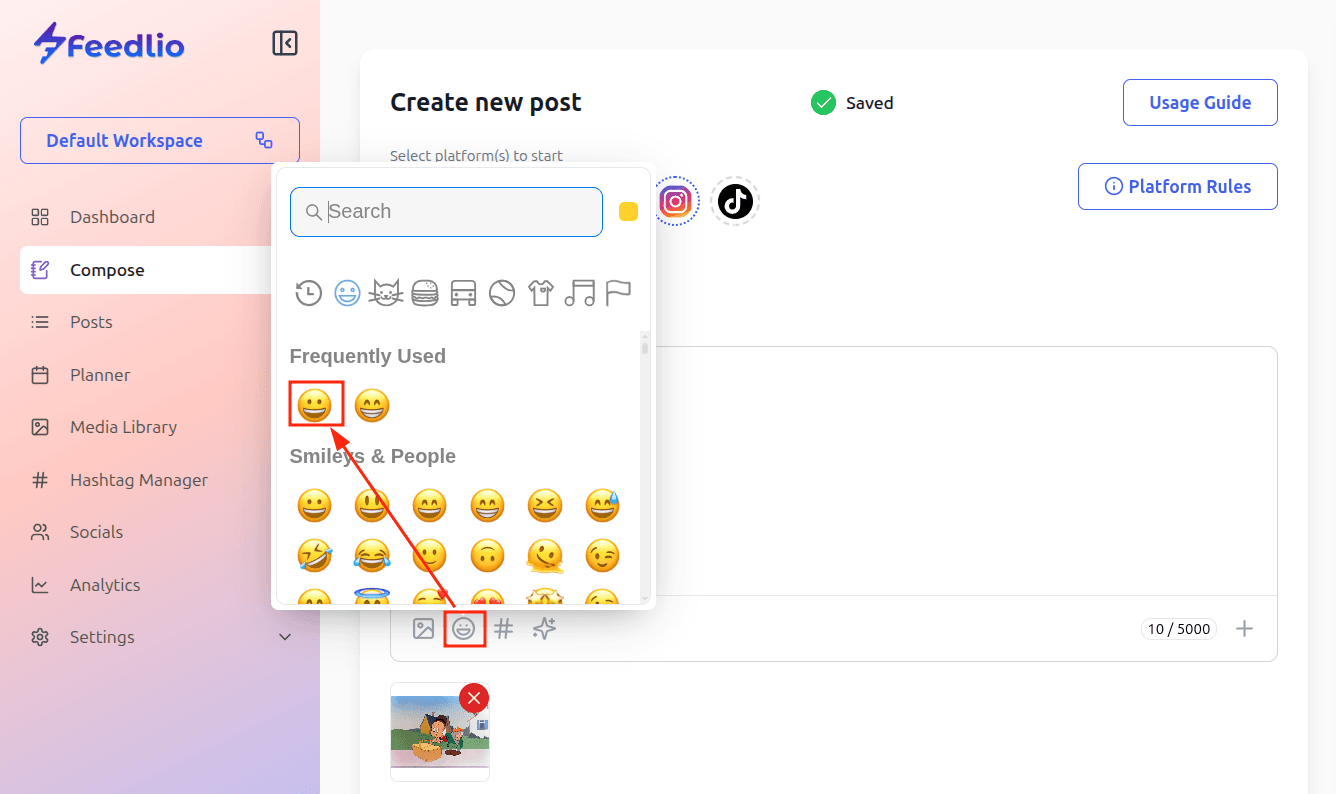
Now, you can add a personal touch to your message by clicking the emoji icon to insert emojis directly into your post.
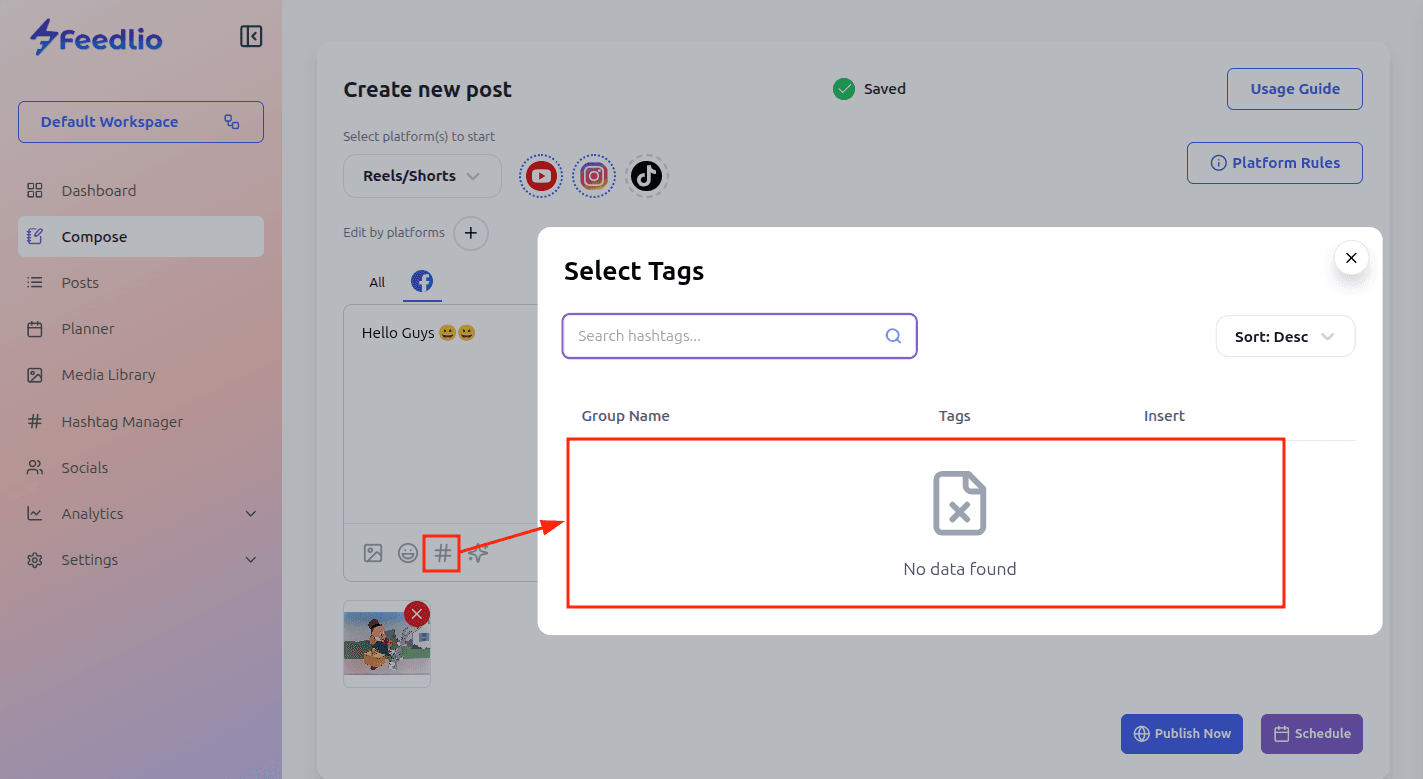
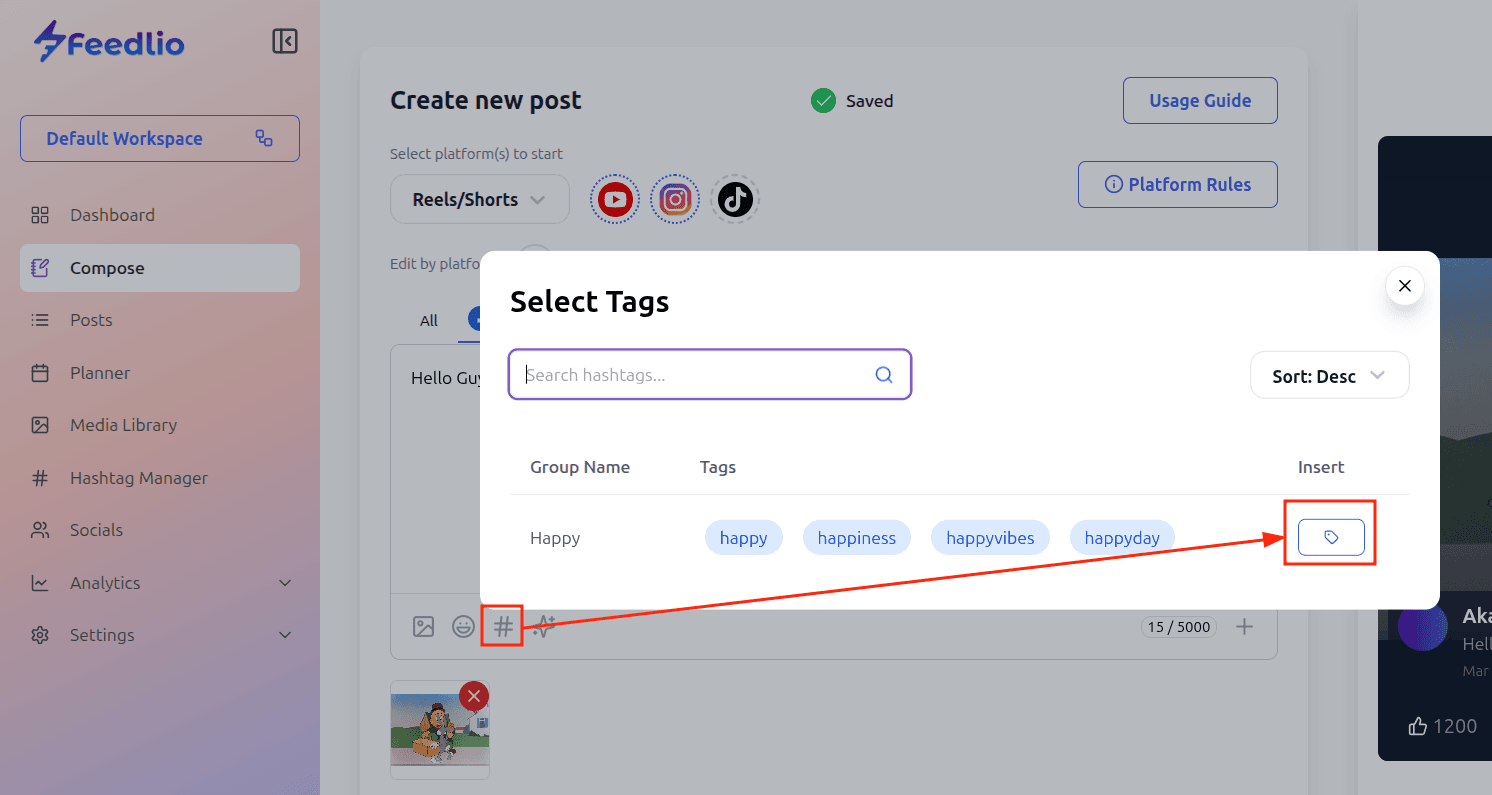
Step-07: To optimize your post’s reach, you can easily insert hashtags by clicking the hash (#) icon. This opens a Hashtag Manager pop-up; however, if you haven’t created any groups yet, this section will appear empty.
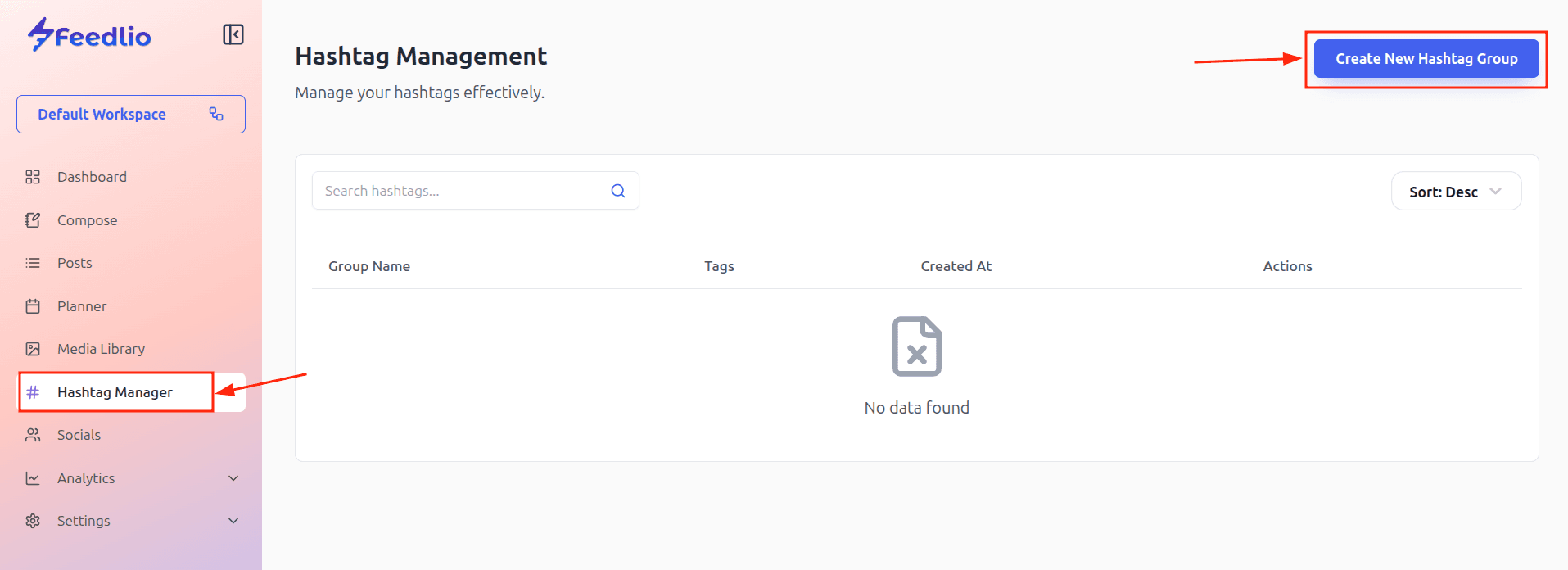
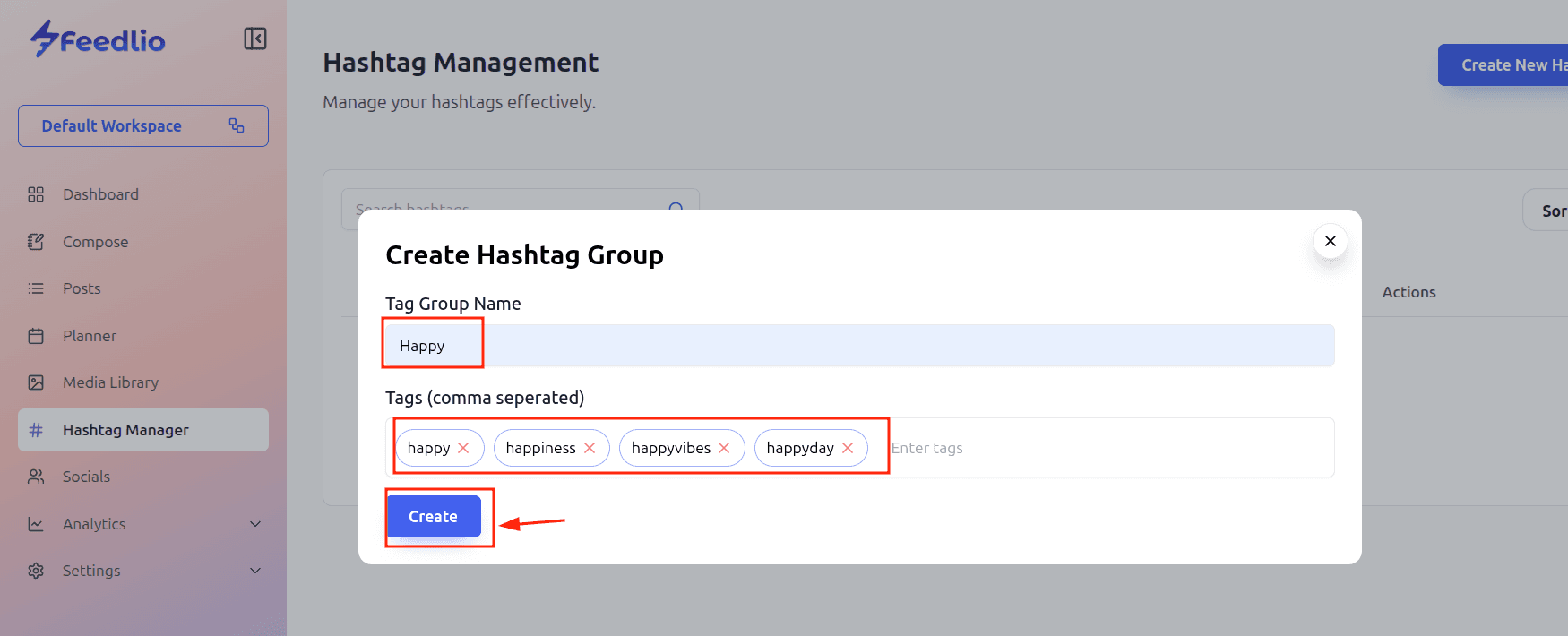
To set up your first set of tags, navigate to the Hashtag Manager menu and click the "Create New Hashtag Group" button. This will open a dedicated pop-up where you can input a descriptive Group Name and your chosen tags. Simply enter your tags as a comma-separated list, and they will be saved as a reusable group that you can instantly insert into any future post.
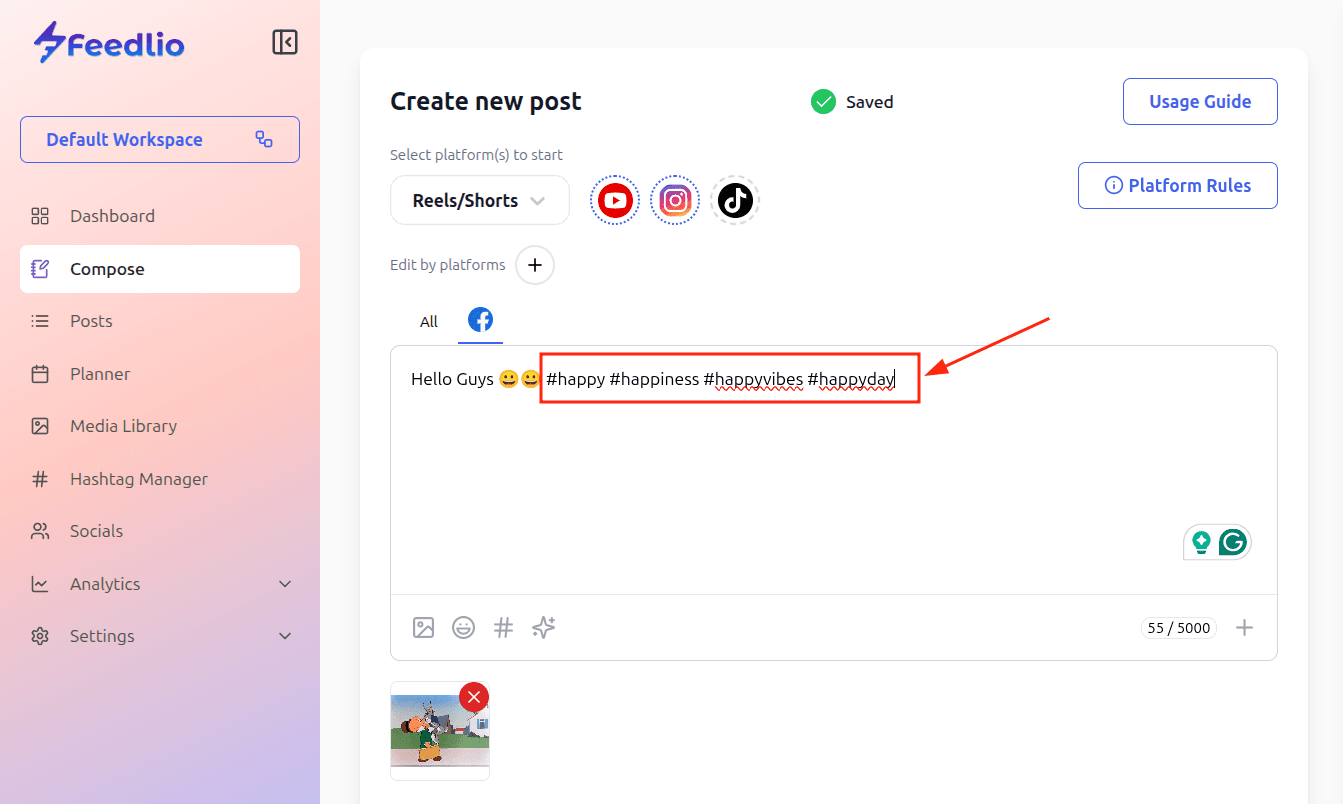
Step-08: Now, click the hash icon again to add your hashtags, and you will see your newly created group prominently displayed in the pop-up. Simply click the Insert icon next to your group to instantly add all those tags to your post, saving you from repetitive typing and ensuring your content is always search-optimized.
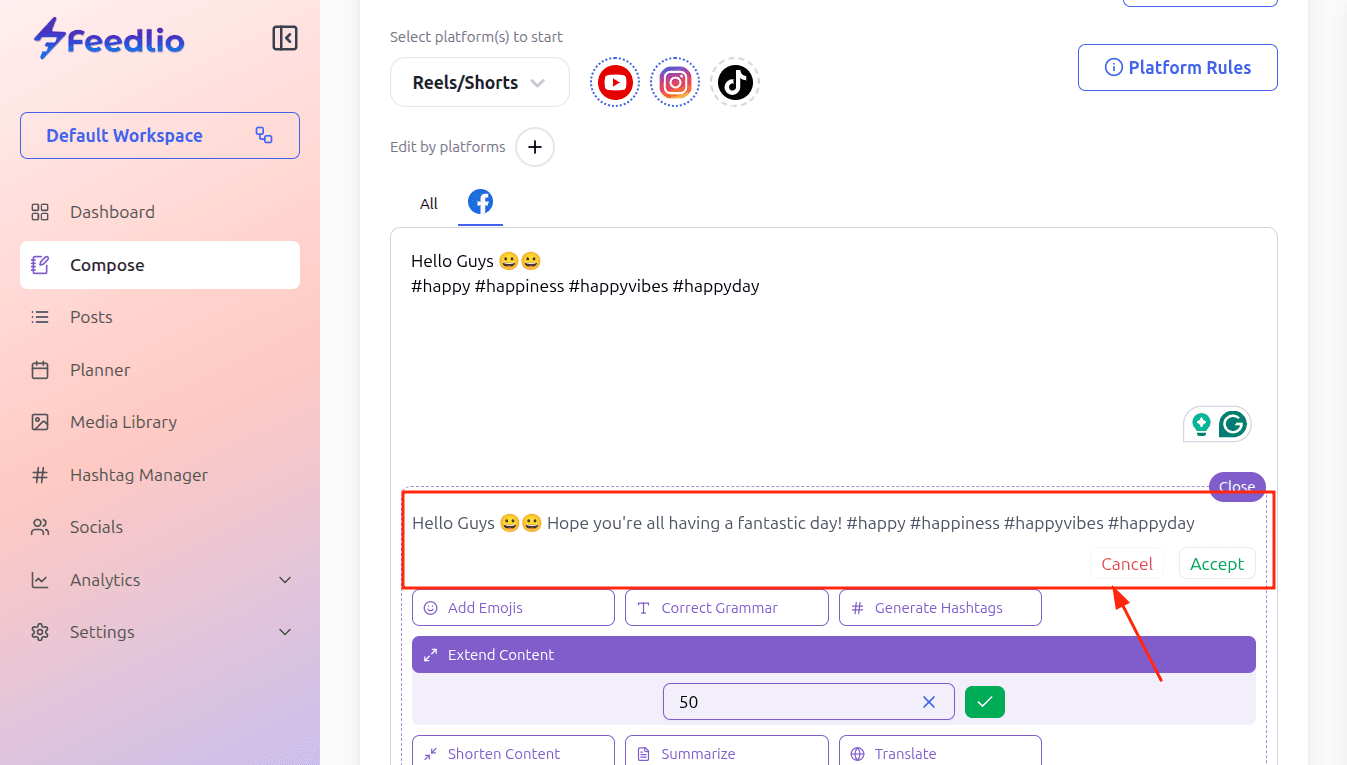
Step-09: To elevate your content even further, Feedlio features a built-in AI Assistant designed to make your posts more professional and engaging with just a few clicks. By clicking the AI icon, you'll unlock a suite of powerful tools—including Add Emojis, Correct Grammar, and Generate Hashtags—to polish your message, along with options to Extend, Shorten, Summarize, or Translate your text for a global audience. If you have a specific vision in mind, you can also use the Custom Input field to give the AI a unique prompt, allowing you to refine your brand voice exactly how you want it.
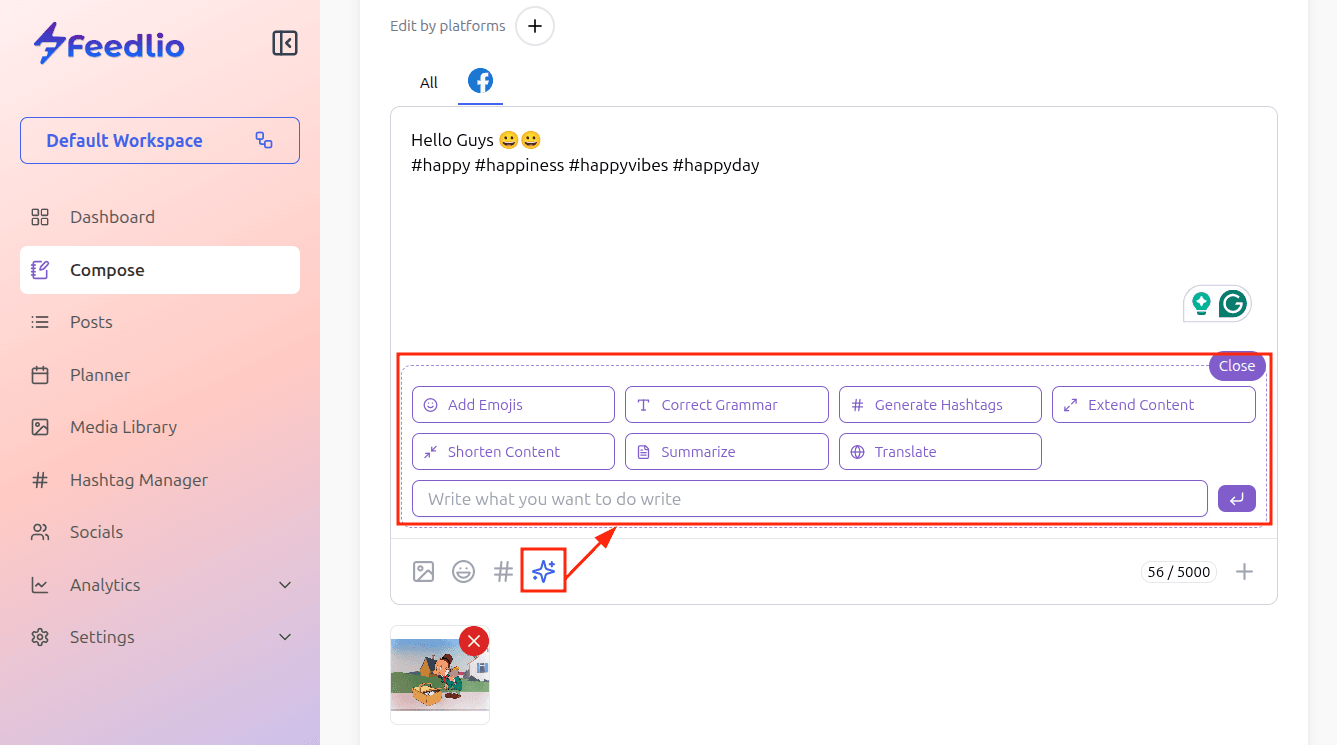
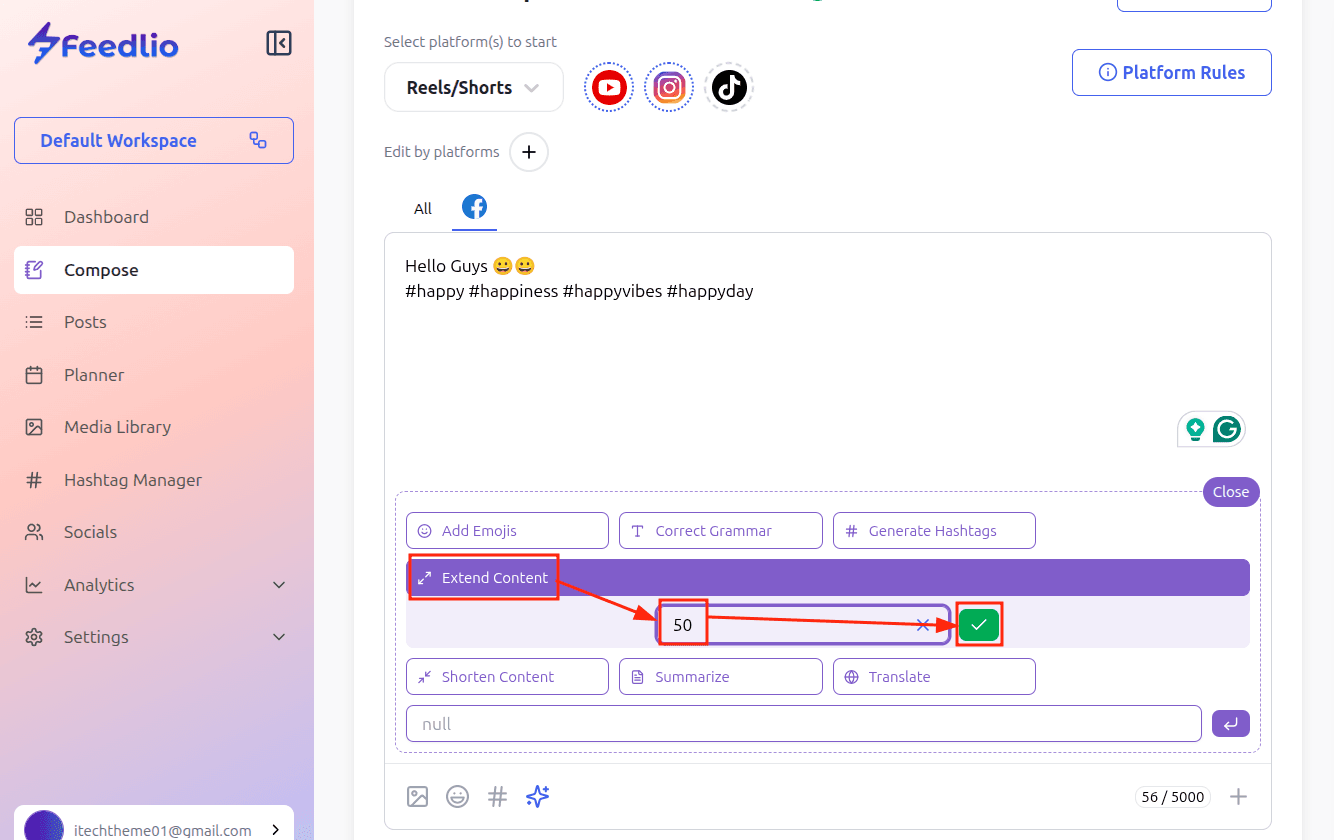
If you want to elaborate on your ideas, simply click the Extend Content button, set your desired character limit, and click the check icon to let the AI generate a more detailed version of your post.
Once the extended content appears, you have full control to review the results: if it perfectly matches your vision, click Accept to update your draft instantly, or click Cancel to discard the suggestions and stick with your original text.
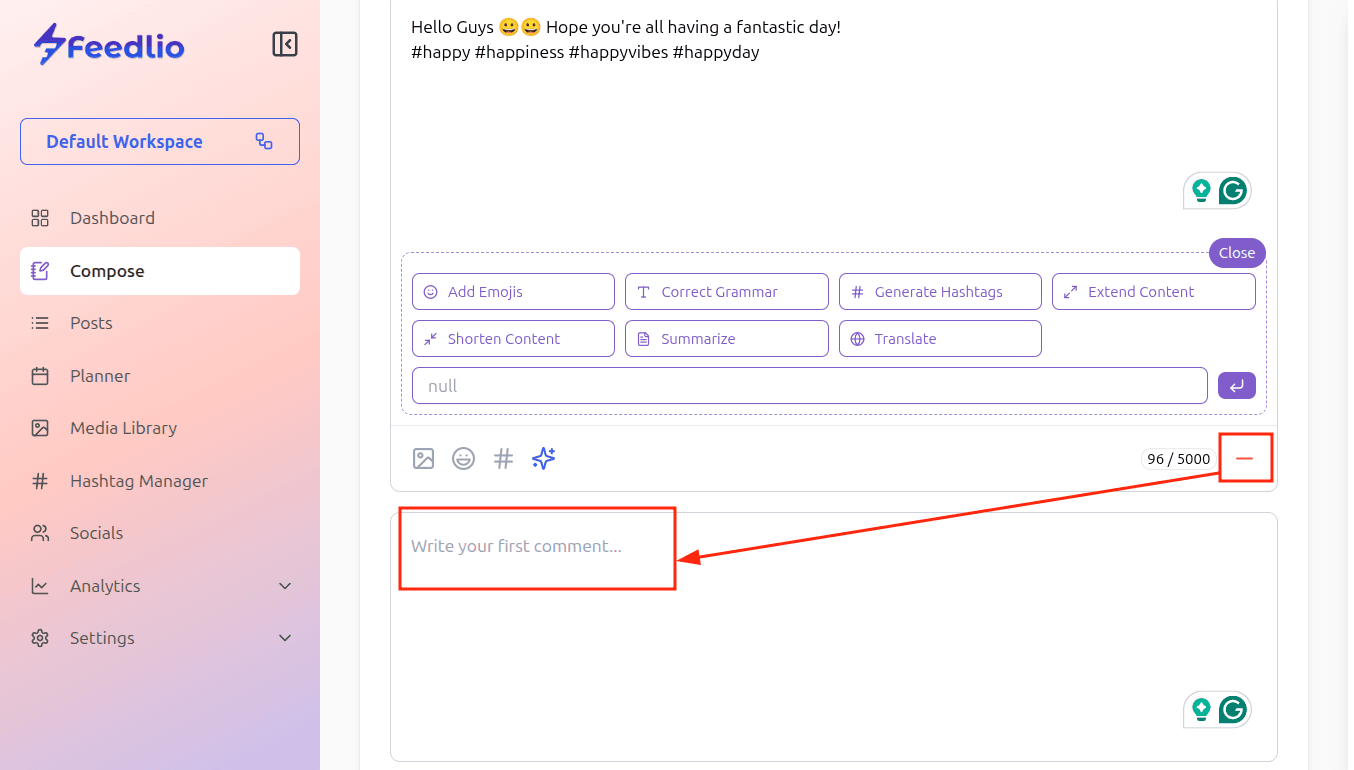
Step-10: To increase engagement right from the start, Feedlio includes an Add First Comment feature. You can use this to include additional hashtags, links, or a call-to-action that appears immediately after your post goes live—or, if you prefer a cleaner look, you can simply skip this section and move forward.
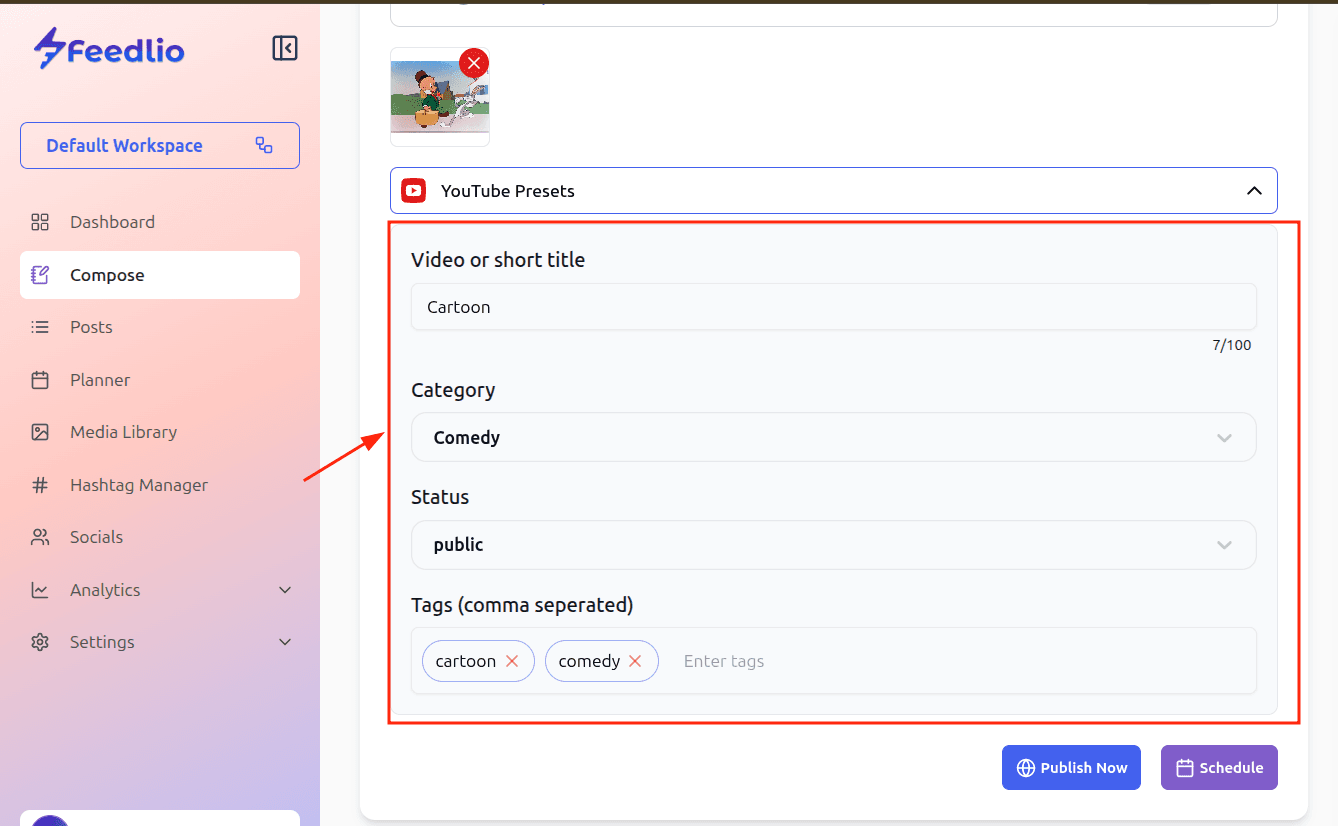
Step-11: For video creators, the YouTube Presets section is specifically designed to handle platform-specific metadata. In this dedicated area, you’ll need to input your YouTube Video Title, select a Category, and set your visibility Status. To boost your searchability, you can also add your Tags as a simple comma-separated list, ensuring your video is properly indexed for the right audience.
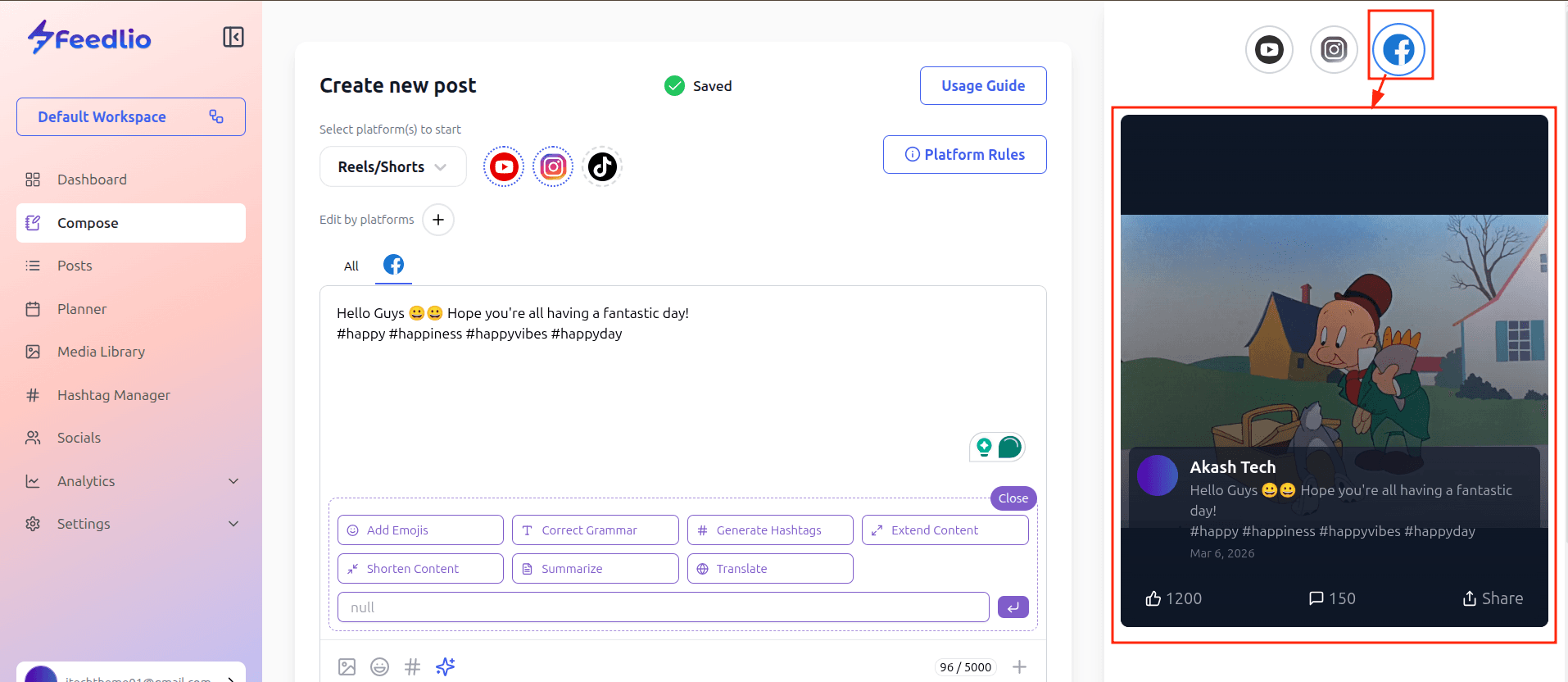
Step-12: On the right side of your screen, you’ll find the Live Preview pane, which acts as a real-time window into how your post will actually look once it hits the feed. This dynamic display updates instantly as you switch between your platform tabs, showing you the specific layout, image cropping, and text formatting for Facebook, YouTube, or any other selected platform.
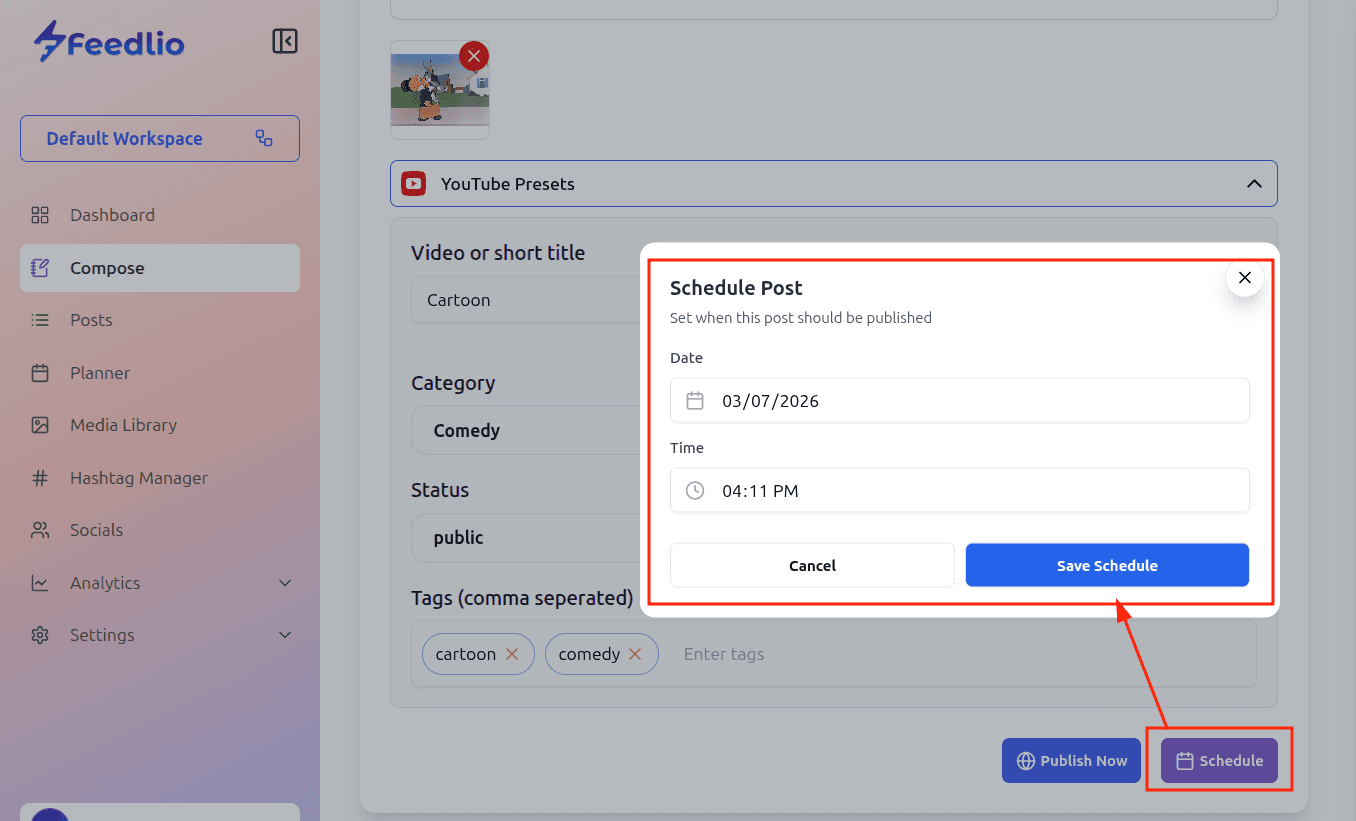
Step-13: With everything perfectly set up, you have two final options at the bottom of the screen to get your content live:
- Publish Now: Press this button to instantly send your post to all selected platforms.
- Schedule: Click this button if you want to pick a specific date and time for your post to go live in the future, allowing you to reach your audience when they are most active.
Once you click the Schedule button, the Schedule Post pop-up will appear, giving you full control over when your content goes live. Simply select your preferred date and time, then click the Save Schedule button to lock it in. Your post is now queued and ready to be published automatically at the exact moment you've chosen!